
Manage bookings
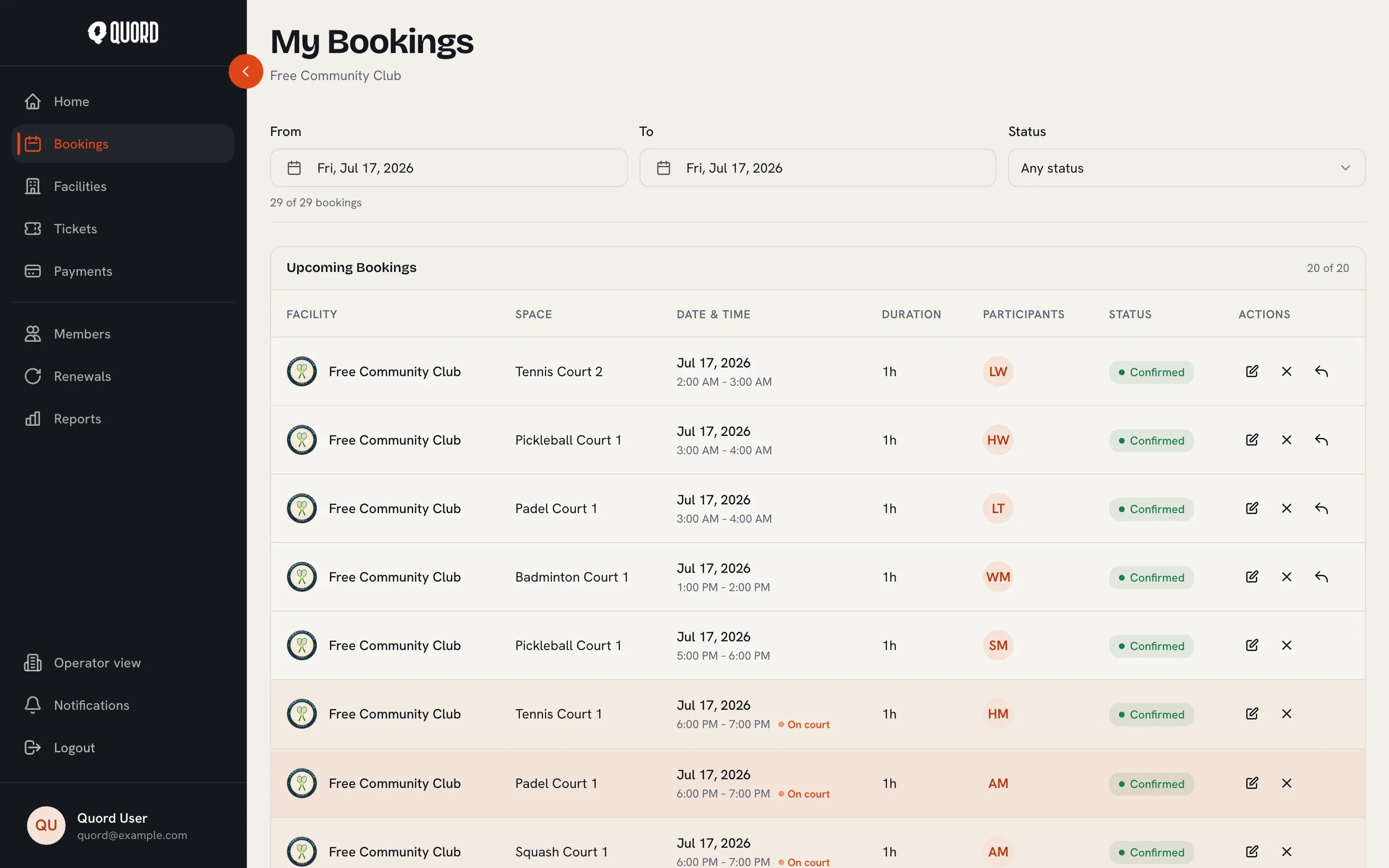
Switch to the operator view from the sidebar, then open Bookings. The page shows every booking at your club, split into “Upcoming Bookings” and “Past Bookings”. If you manage more than one club, a “Viewing” selector at the top chooses which club you’re looking at.
Filter by date (“From” and “To”) and by status: Confirmed, Pending payment, Payment failed, Payment expired, Cancelled, Completed or No show.
Book for a member
Section titled “Book for a member”Managers use the same “Create Booking” page as players, including the “Grid” / “By time” views and the “Duration” chips, with fewer limits: you can pick any date, including past ones, and advance booking windows do not apply to you.
- Open your club page and choose “Book Now”. Pick the date, sport and an available slot.
- In the “Select Participants” dialog, choose “Book on behalf of another member” and search for them by name or email.
- On “Review Booking”, paid slots booked for someone else show a “Payment” choice: “Free / Comp” (no payment required) or “Paid offline”. For offline payments, pick the method (Cash, Card at club, Bank transfer or Other) and add an optional note.
Recurring bookings
Section titled “Recurring bookings”On Premium, the “More actions” menu on the Create Booking page includes “Set up recurring booking”. This reserves a repeating slot across one or more courts, held as a “Training”, “Tournament” or “Closed” block (coaching, league nights, contracted hire). Members cannot book over a block; the slot shows as taken in their grid.
Choose the courts, the start and end time, and the “First session” date. Under “Repeat every” you set the interval in days, weeks or months; weekly series also get “Repeat on” day toggles. “Ends on” sets the final date, up to a year out. The review step counts the sessions it will create and lists any clashes with existing bookings; nothing is created until every clash is dealt with. Overriding cancels those bookings, and the clash list shows which were paid by card (refunded automatically) and which were paid at the club (refund those by hand).
No-shows
Section titled “No-shows”Open a confirmed booking and choose “Mark as no-show”; the action becomes available once the booking has started. It records attendance only: no fee is charged and the payment is untouched. The member is notified by email. If it was a mistake, “Undo no-show” restores the booking to confirmed, unless another booking has since taken the slot.
Cancel a member’s booking
Section titled “Cancel a member’s booking”Open the booking and choose “Cancel booking”. You can add a reason, visible to staff only. If the booking was paid by card, the dialog offers “Cancel only” or “Cancel & refund” with the amount shown.
Bulk cancel
Section titled “Bulk cancel”On Premium, “Bulk cancel” (under “More actions” on the Create Booking page) clears a whole date range in one step, useful for maintenance, weather or a tournament weekend. Pick the window and whether it covers every court or only chosen ones, add a reason, then choose “Preview impact” to see how many bookings are affected before you confirm.
Confirming cancels those bookings the same way a one-by-one cancellation would: every affected player is emailed, and bookings paid by card are refunded automatically. Bookings paid at the club (cash or offline) can’t be returned to a card, so refund those by hand from each booking’s page.
Bulk replace
Section titled “Bulk replace”Also on Premium and under the same “More actions” menu, “Bulk replace” clears a date range and drops a blocking booking onto the freed courts in one step. Use it when you need the courts held rather than just emptied: a tournament weekend, contracted hire or a coaching block. Under “Replace with”, the block is a “Closed”, “Tournament” or “Training” slot; members see it as taken and cannot book over it.
Pick the “Start date and time” and “End date and time”, choose whether the “Scope” covers every court or only chosen ones, pick the “Replace with” type, and add a reason (players see it in the email). Choose “Preview impact” to see how many bookings are affected, then confirm with “Replace X bookings”.
Confirming works exactly like “Bulk cancel” for the existing bookings: every affected player is emailed, card payments are refunded automatically, and bookings paid at the club must be refunded by hand from each booking’s page. On top of that, one new block is created on each court in the range.