
Spaces, sports and schedules
Everything in this guide lives in Manage, under the Operations group: “Spaces”, “Amenities”, “Booking Rules” and “Opening Hours”.
Spaces
Section titled “Spaces”The “Spaces” section lists your courts with their sport, surface and price.
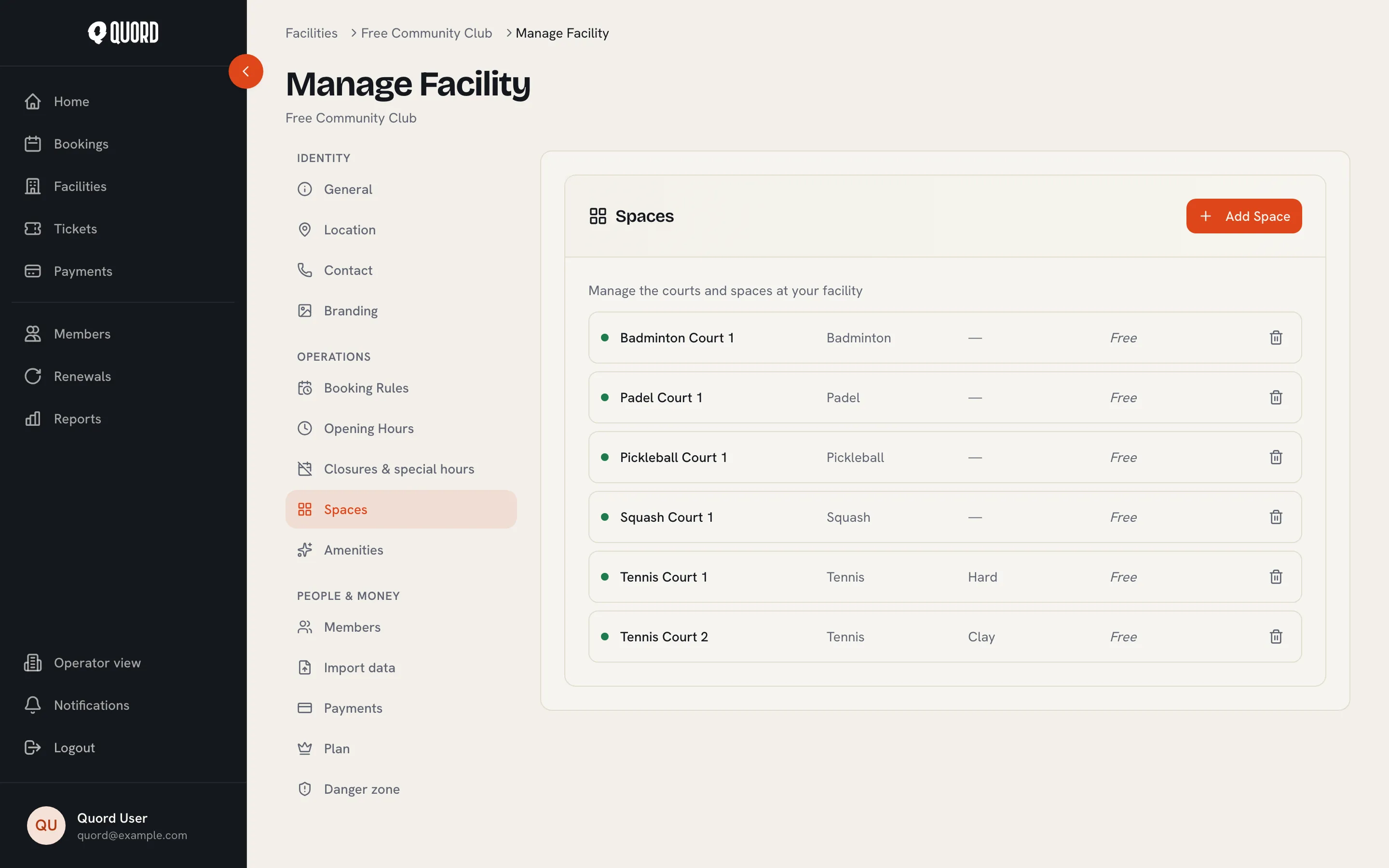
To add a court, choose “Add Space” and fill in the “Space name”, the sport and the “Surface” (options depend on the sport). The sport cannot be changed after creation, so pick carefully; everything else can be edited later.
Clicking a space opens it with three tabs:
- “Details”. Rename it, change the surface, toggle “Active” (space is visible and bookable) and “Allow non-member booking” to let guests without a membership book this space.
- “Pricing”. Turn on “Charge for bookings”, then set the “Price per hour” and “Currency” and choose “Save pricing”. Quord supports GBP, EUR and USD, and the currency is fixed by your club’s country (GBP for the UK, USD for the US, EUR across the eurozone), so it is the same for every space. With the toggle off the space is free and bookings confirm immediately. Paid bookings need Stripe set up first, see Connect payments.
- “Hours”. “Match facility opening hours” is on by default. Switch it off only if this space keeps different hours from the club.
Deleting a space also cancels all its active bookings and cannot be undone.
Amenities
Section titled “Amenities”The “Amenities” section is a list of toggles (parking, showers, café and many more). Whatever you switch on is shown to players on your public club page.
Booking rules
Section titled “Booking rules”“Booking Rules” controls how members book, in three groups:
- “Booking Duration”. “Minimum duration (minutes)”, “Maximum duration (minutes)” and the “Slot increment” (5 to 60 minutes), which sets the grid of start times players can pick from. With courts for more than one sport, a “Per-sport overrides” list appears underneath: fill in a field to set a different value for that sport, and leave it empty to inherit the club-wide value. Padel can offer 60 or 90 minute games while tennis stays hourly.
- “Who can book”. “Allow non-member booking” opens the club to guests. “Member advance booking (days)” and, when guests are allowed, “Guest advance booking (days)” cap how far ahead each group can book.
- “Booking Policies”. “Max bookings per day” per member (tick “No limit” to remove the cap) and the “Cancellation deadline (hours)”. Setting the deadline to 0 lets members cancel any time before the booking starts.
There is also a “Show booker names on unavailable slots” option, available on every plan. When on, all members can see who booked each slot in the availability grid. When off, booker names and participants stay hidden from members. On Premium, managers see booker names and participants whatever the setting; on Standard, managers see the same grid as members.
Opening hours
Section titled “Opening hours”“Opening Hours” holds your normal weekly schedule.
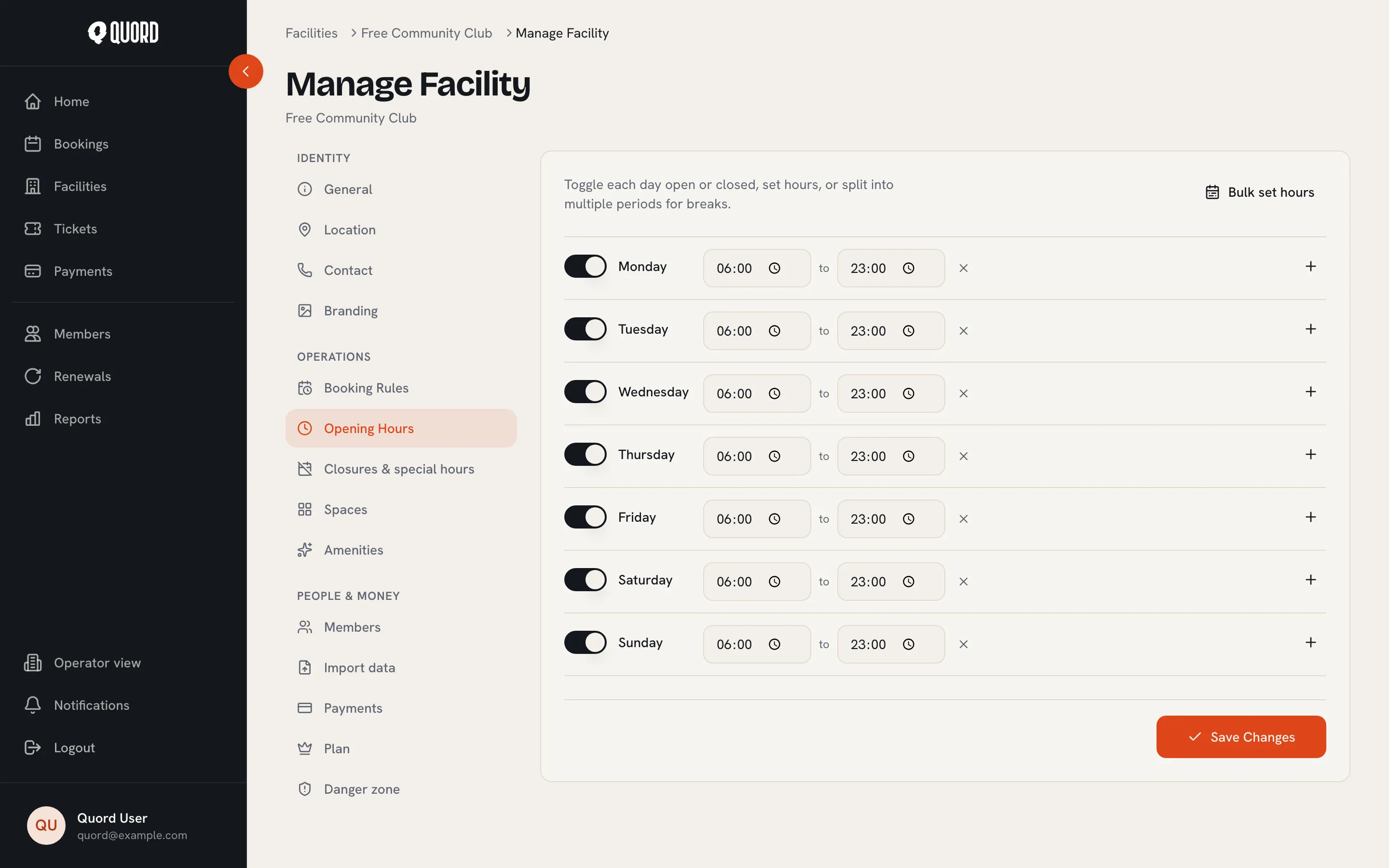
For each day, use the toggle to mark it open or closed and set the open and close times. The plus button adds a second period to a day, useful for a lunch break. Remember “Save Changes” when you are done.
“Bulk set hours” (Premium) applies the same hours to several days at once, with “Weekdays”, “Weekends” and “All days” presets and an “Add break” option.
For one-off dates such as holidays, use closures instead of editing the weekly schedule.