
Manage your membership
Open your club’s page and choose “Manage Membership”. The “Membership” page shows your current membership and everything you can do with it.
Membership details
Section titled “Membership details”“Membership Details” lists your “Membership Type”, “Status”, “Start Date” and “End Date”. “Show more” expands the plan’s description, benefits (booking discounts, advance booking windows, daily booking limits) and pricing. Earlier memberships appear further down under “Past Memberships”.
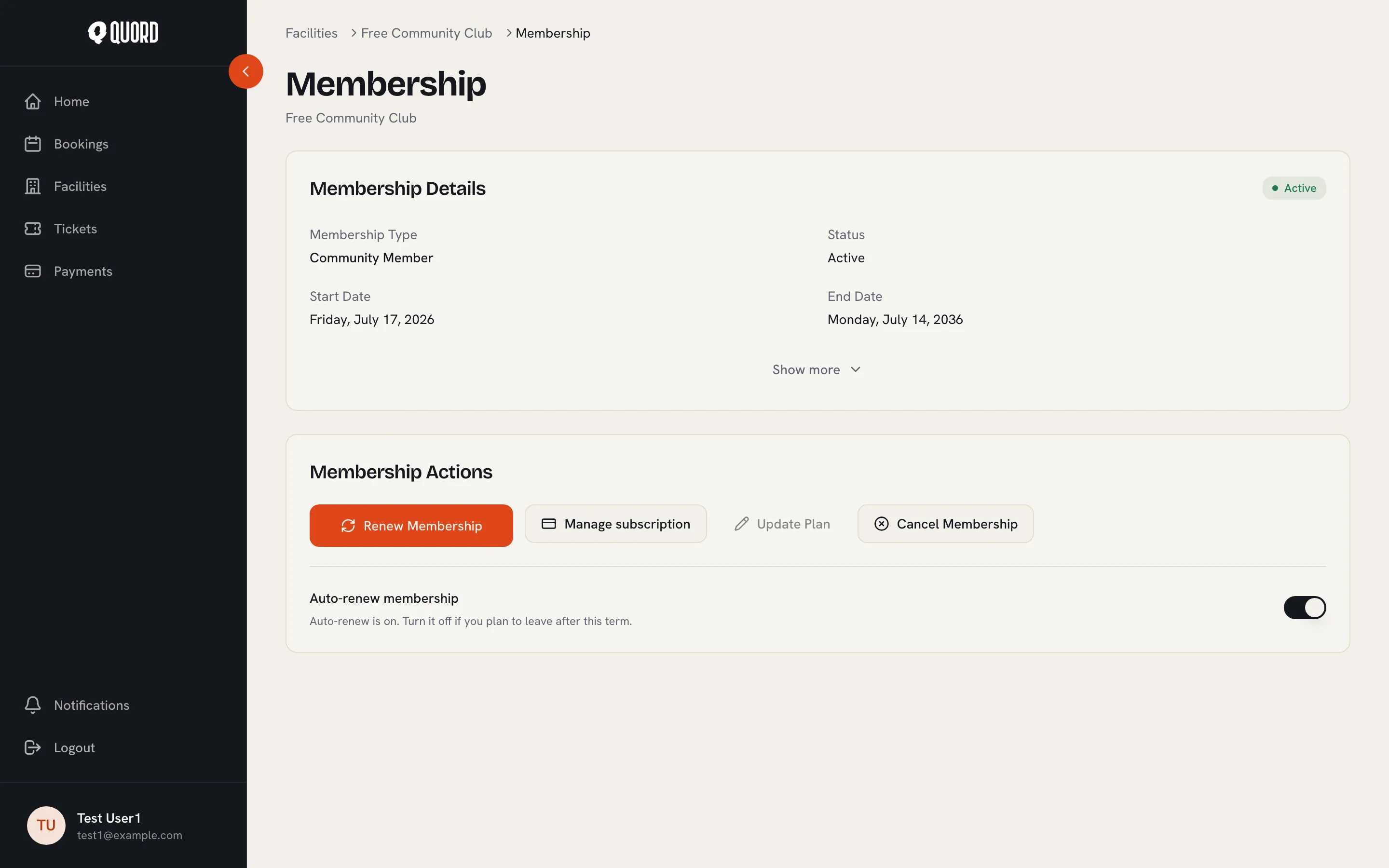
“Renew Membership” opens a dialog where you pick a payment plan and select “Confirm Renewal”. The renewal starts automatically when your current term ends, and the page shows it as a “Scheduled renewal” until then. While one is scheduled, the button reads “Renewal scheduled” and you can’t add another.
Update plan
Section titled “Update plan”“Update Plan” moves you to a higher-tier plan. You review the change before confirming: your saved card is charged a prorated amount now, the plan changes immediately, and future renewals use the new price.
The button is unavailable during your first 14 days (the cooling-off period), while a payment is overdue, while a cancellation is scheduled, and on manual billing. Because the change sets a new recurring amount, you tick “I authorize recurring payments” again before it applies.
Cancel
Section titled “Cancel”“Cancel Membership” schedules a cancellation rather than ending things on the spot. Pick a “Cancellation Date” (any day up to your current end date; it defaults to the end of the term) and optionally tell the club why. You keep full access until that date.
Changed your mind? The page shows “Cancellation scheduled for” your chosen date with an “Undo” button that restores the membership.
Auto-renew
Section titled “Auto-renew”The “Auto-renew membership” toggle controls what happens at the end of each billing cycle. On, your membership extends automatically. Off, it runs to the end of the paid term and then stops: “Renews manually. You’ll need to renew before expiration.”
Manage subscription
Section titled “Manage subscription”For memberships billed through Stripe, “Manage subscription” opens a Stripe-hosted portal where you can update the card your membership charges. The portal also shows your past invoices and can cancel the subscription; Quord picks up a portal cancellation automatically and ends the membership on the same date.
Withdraw within the cooling-off period
Section titled “Withdraw within the cooling-off period”Within 14 days of joining, the “Cancel Membership” dialog also offers “Cancel within your cooling-off period” with a “Withdraw & refund” button. You get a full refund and your access ends immediately. The dialog shows the date the option is available until. It only appears for memberships paid online; if you pay in person, speak to the club about refunds.
If a renewal payment fails
Section titled “If a renewal payment fails”A failed card charge at renewal doesn’t end your access. The membership shows “Past Due” and you keep booking for 14 days while the payment is retried. An email arrives immediately, and an in-app alert with an “Update your card” button points you to the fix.
If it stays unpaid, the membership is suspended: access stops, no further charges are attempted, and rejoining is your own action via “Re-subscribe”. If the payment recovers in time, everything returns to normal and an email confirms the membership is restored.
If you age out of your plan
Section titled “If you age out of your plan”Some plans have an age range. If you still fit at renewal, nothing changes. Once you’ve aged out, Quord moves you to an eligible higher tier on the same payment frequency automatically. When no suitable tier exists, auto-renew switches off, nothing is charged, and an email asks you to rejoin on a plan that fits.
On a family plan
Section titled “On a family plan”A family membership has one payer, and everyone covered follows the payer exactly: “Past Due” together, suspended together, restored together. Only the payer can fix a payment. Booking allowances are the exception: each person has their own daily allowance, and one person’s booking never uses a sibling’s or parent’s.