
Closures and special hours
Weekly opening hours cover a normal week. For holidays, maintenance or bad weather, add a closure instead of editing the weekly schedule: it overrides your hours for a date range and reverts automatically.
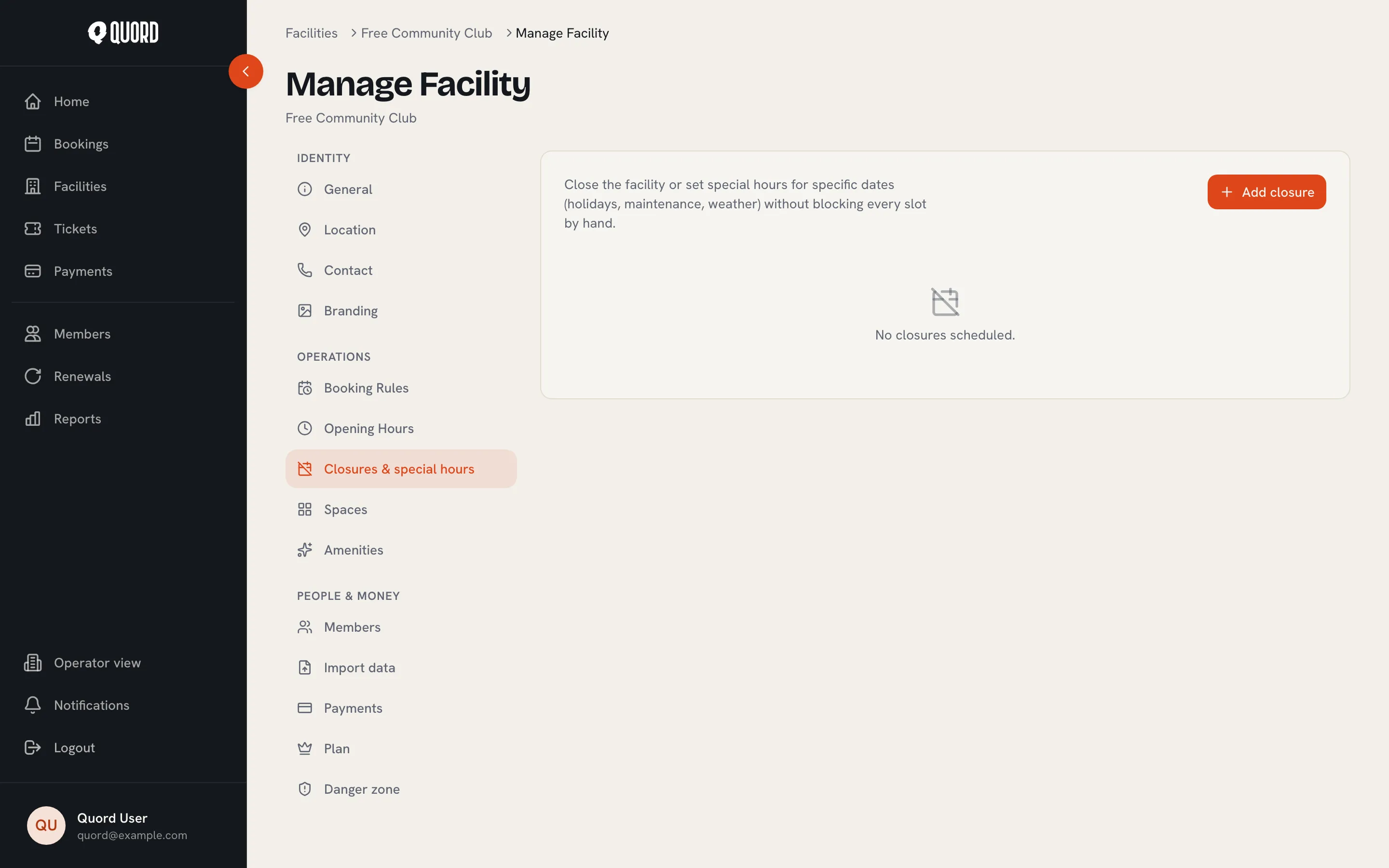
Add a closure
Section titled “Add a closure”-
In Manage, open “Closures & special hours” and choose “Add closure”.
-
Pick a “Start date” and “End date” (use the same date for a single day). Dates in the past cannot be selected.
-
The default is a full-day closure. For shortened hours instead, switch on “Open with special hours instead of fully closed” and set one or more periods with “Opens at” and “Closes at”. “Add period” splits the day.
-
Optionally add a “Reason” such as “Christmas”. It is only shown to operators, members never see it.
-
Choose “Save Changes”. The closure appears in the list with a “Closed” or “Special hours” badge.
How closures interact with weekly hours
Section titled “How closures interact with weekly hours”For every date in its range, the closure wins over the weekly schedule. A full closure removes all slots for those dates; special hours offer slots only inside the periods you set. Bookings that would fall outside them are blocked, both in the availability grid and if someone tries anyway.
Two closures cannot cover the same date; edit the existing closure instead of adding another on top. Deleting a closure returns the affected dates to your normal opening hours, and closures whose end date has passed drop off the list on their own.
Existing bookings
Section titled “Existing bookings”While you edit the dates, the form checks for bookings that fall inside the closure and shows a warning with the count and the first few affected bookings. With special hours, only bookings that fall outside the reduced window are flagged; a booking that still fits carries on unchanged. Saving the closure does not cancel the flagged bookings; that is your call.
Use “Cancel & refund” in the warning to cancel them in one go. Card payments are refunded through Stripe automatically; bookings paid offline (cash, bank transfer, card at the club) are counted for you to refund manually. See Refunds and offline payments. Members are notified when their booking is cancelled.
What members see
Section titled “What members see”On closed dates the booking grid shows no available slots, and on special-hour dates only the reduced window is offered. Members are not told why, so if the closure needs explaining, post it on your club feed.