
Coaches & lessons
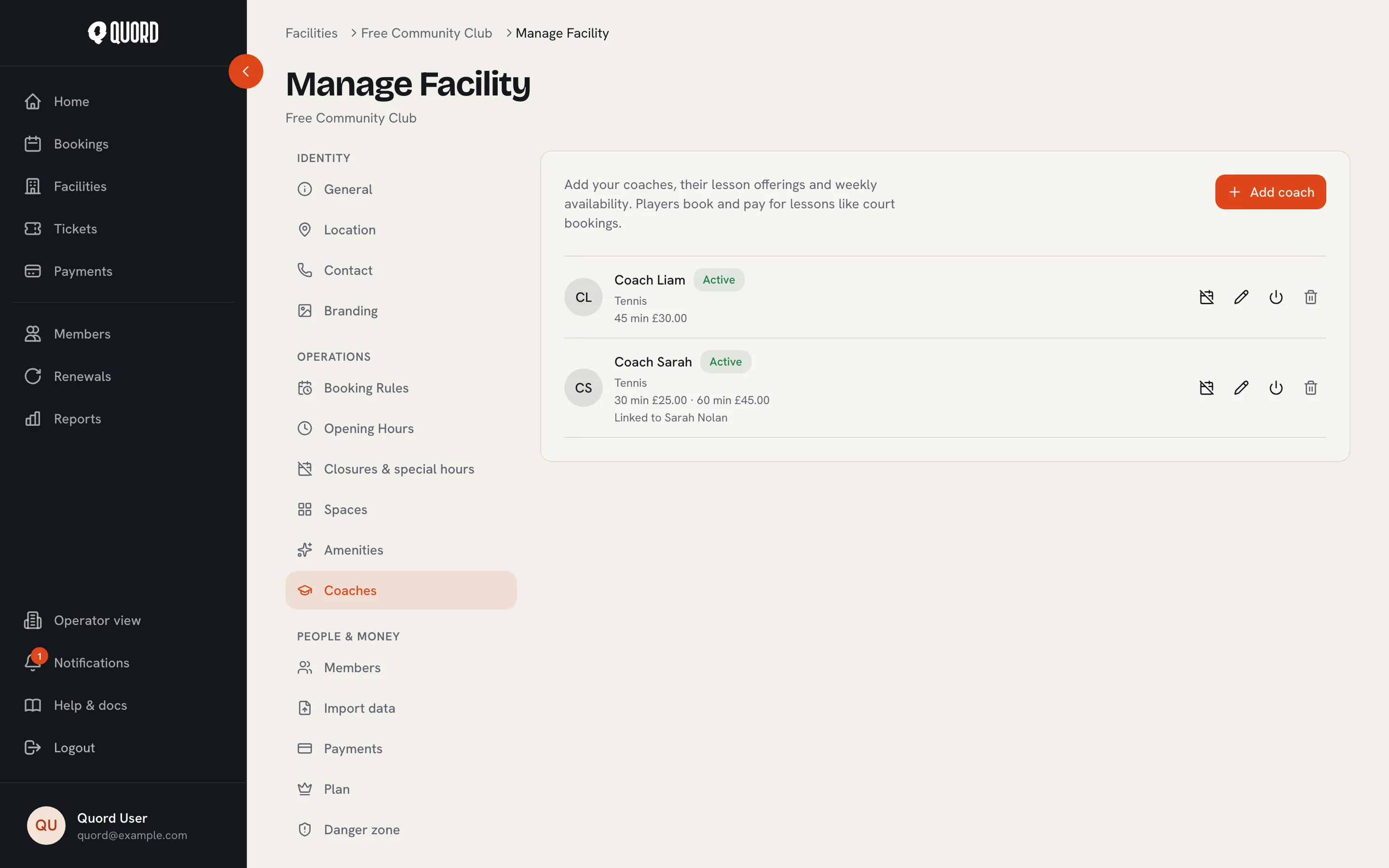
Coaches let you sell one-to-one lessons. A player picks a coach, a lesson length and a time; the booking reserves the coach and one of their courts, so nobody can book over it.
You manage coaches from Manage on your club page, under Coaches in the Operations group.
Add a coach
Section titled “Add a coach”-
Select Add coach and fill in the profile: a Name, an optional Bio and Photo, and the Sports they teach.
-
Optionally set a Linked member. Linking a coach to a member account gives that member a My lessons page with their upcoming schedule, plus a notification and email whenever a lesson is booked or cancelled. The linked account must be an active member of your club.
-
Add lesson offerings with Add offering: a Duration (minutes) and a Price (0 = free). Each duration can appear once, and the Bookable toggle takes an offering off sale without losing it.
-
Set the Weekly availability: the hours each day when the coach can be booked. Lessons can only be booked inside these hours and the club’s opening hours.
-
Tick the Courts the coach teaches on. A lesson books the coach and one free court from this list, so a time only shows to players when both are available.
-
Save coach. Active coaches appear to players right away under the club’s Coaches tab.
How lessons behave
Section titled “How lessons behave”Lessons are bookings. They appear in your bookings list with a “Lesson” badge and the coach’s name, they block the court they land on, and cancelling one refunds it like any other booking.
- The price is always the offering price. Membership booking discounts do not apply to lessons.
- Paid lessons go through Stripe Checkout, so your Stripe account must be connected first (see Connect payments). An unfinished checkout holds the slot for about half an hour, then it is released.
- A lesson’s time and court cannot be edited. Cancel it and book a new slot.
You can also book a lesson for a member from the coach’s booking page: choose Book for member, then either Send to Stripe Checkout or Record offline payment for cash or card taken at the club. Recording an offline payment needs a member selected; you cannot record one for your own booking.
Time off
Section titled “Time off”Each coach card has a Time off panel for holidays and absences. Pick the First day and Last day (whole days), add an optional Reason, and save. No lessons can be booked on those dates.
If upcoming lessons already fall inside the range, they are listed before you save. Adding the time off won’t cancel them; use Cancel & refund to cancel the lot. Card payments are refunded automatically, lessons paid at the club are flagged for you to refund by hand, and every member gets the usual cancellation email.
Deactivate or delete
Section titled “Deactivate or delete”Deactivate hides a coach from players and stops new bookings; existing lessons and their history stay. A coach can only be deleted while they have no lessons at all, so deactivating is the usual way to retire one.
Coach earnings
Section titled “Coach earnings”The Coaches tab in Reports shows lessons, gross, refunded and net revenue per coach for the selected dates, with the online and offline amounts split out. Online and Offline are each net of their own refunds, so the two add up to Net; if you pay a self-employed coach their card takings, the Online column is the figure to settle. Export CSV downloads the table.