
Events
Events let you sell tickets for tournaments, courses and social nights. An event holds the courts it needs, so nobody can book over it.
You manage events from the Events tab on your club page, next to Feed, Coaches and About.
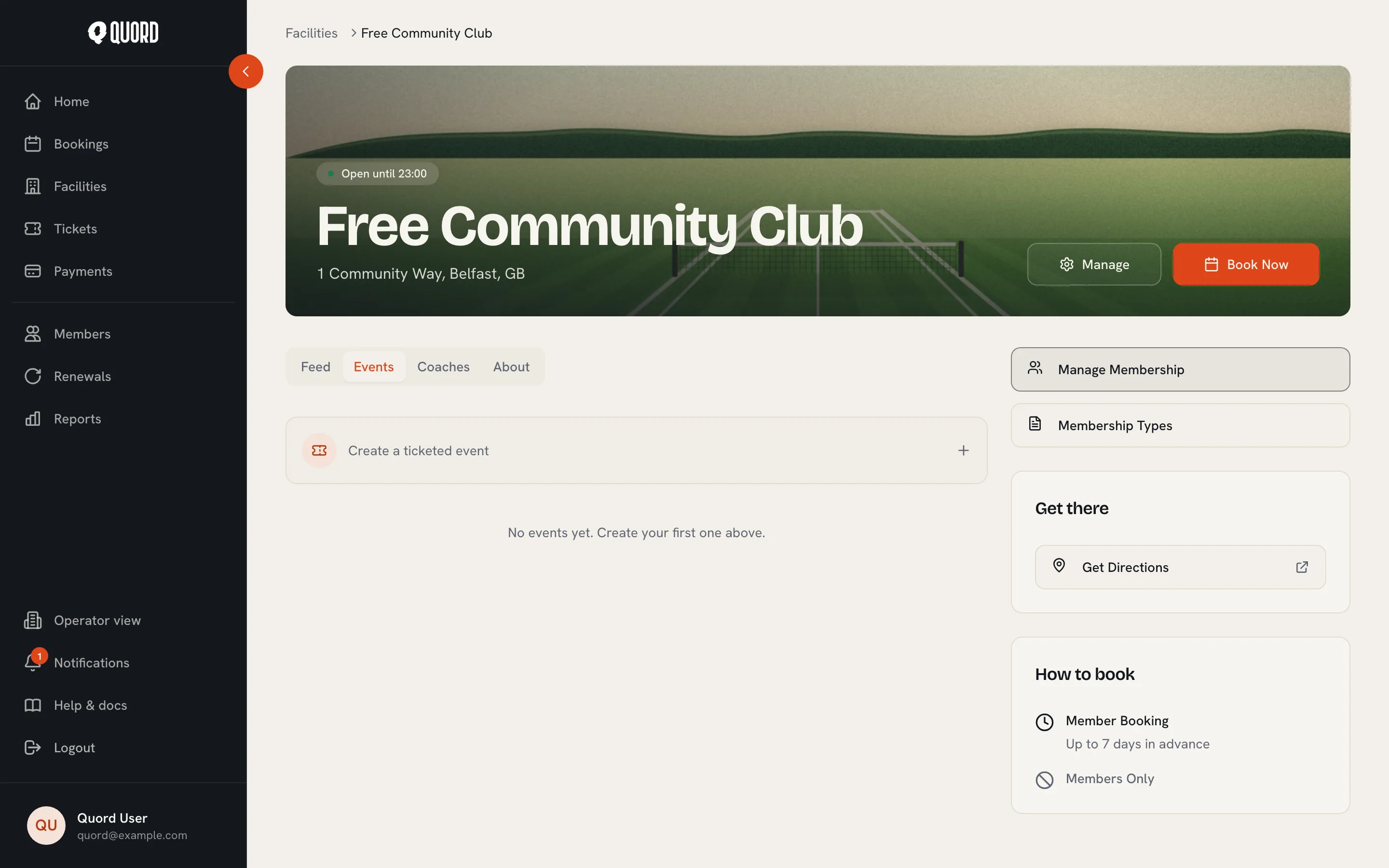
Create an event
Section titled “Create an event”-
Select Create a ticketed event.
-
Fill in the details: Title, Description, a Cover image, and Visibility (“Public” or “Private (members only)”). The Self-cancel deadline (hours before) sets how close to the start attendees can still cancel their own ticket (24 hours by default).
-
Add sessions. Each session has a start (“Starts”), an end (“Ends”) and Courts held, the courts blocked off while it runs. Use Add session for events that span several days.
-
Add ticket types with Add ticket type: a name, a price (0 = free), a capacity (leave blank for unlimited), an audience (“Everyone” or “Members only”), an optional Max per order, and a Waitlist toggle. “Members only” is checked when the ticket is bought; a sold ticket stays valid if the membership later lapses, so cancel and refund the order if needed.
-
Save the event. It stays a draft until you publish it.
Publish
Section titled “Publish”Publishing makes the event live: people can buy tickets and the selected courts are held. From the event, choose Publish.
- Quord checks the held courts against existing bookings. Any clashes are listed under “Some courts are already booked”, with a Cancel all & publish option that cancels those bookings. Card payments on the cancelled bookings are refunded automatically; bookings paid at the club are cancelled but must be refunded by hand. Each member receives the usual cancellation email.
- Paid tickets need your Stripe account connected first. If it is not, you will see “Complete Stripe onboarding before publishing a paid event”. See Connect payments.
- Every session must fall inside your opening hours.
Once published, sessions, courts and ticket types are locked. Unpublish the event to change them; the title, description and image stay editable.
Promote
Section titled “Promote”A published public event has a Promote this event panel at the bottom of its detail view. Choose Post to club feed to publish it as a post in your club feed, with the event’s title, description and a link back to the ticket page, so members see it alongside your other announcements.
If your plan includes email broadcasts, an Also email members toggle sends the same post as an email to every active member. An event can be promoted once: after you post, the button reads Posted to the club feed and stays disabled, so members are never emailed twice about the same event. Private events cannot be promoted this way.
Manage attendees
Section titled “Manage attendees”Open a published event and select Manage attendees. The Attendees tab lists every order, searchable by name, email or ticket code.
- Check in marks a ticket as attended; Undo check-in reverts it.
- Refund an order in full or in part.
- Cancel a registration; the ticket is refunded in full and the spot is freed.
- Export CSV downloads the attendee roster.
The Self-cancel deadline (hours before) binds attendees only; managers can cancel and refund at any time.
Sell at the door
Section titled “Sell at the door”The Sell at door tab records tickets paid in person. Pick the ticket type and quantity, choose how they paid (Cash, Card at club, Bank transfer or Other), optionally add the buyer’s name and email (they will be sent their ticket), then select Record sale. Leaving “Email (optional)” empty sends no ticket email; the sale still appears in the attendee list for check-in.
Waitlist
Section titled “Waitlist”When a ticket type with the waitlist enabled sells out, players can join the queue. As soon as a spot frees up, the first person in line automatically receives a time-limited offer by email to claim and pay for it. An offer lasts 24 hours, or until the first session starts if that is sooner; unclaimed offers lapse and the spot moves to the next person automatically. The Waitlist tab shows who is waiting and which offers are out.
Cancel an event
Section titled “Cancel an event”From the event menu, choose Cancel event. Add a reason (attendees see it), then confirm with Cancel & refund all. Every attendee is refunded, the held courts are freed, and the cancellation cannot be undone.