Quick start for clubs
This page takes a new club from nothing to taking bookings. Each step links to a fuller guide.
-
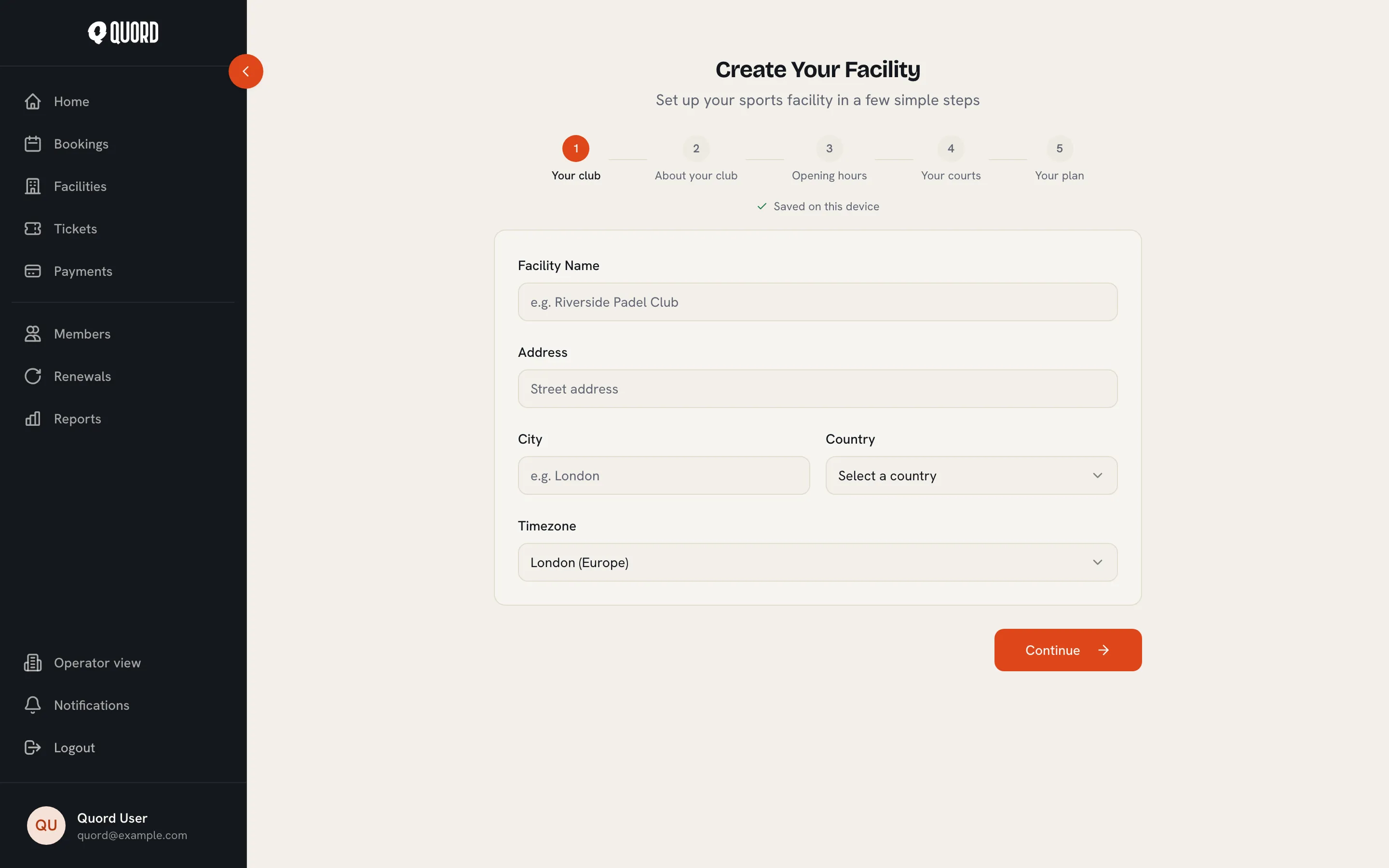
Create the club. Sign up, open Facilities and choose “Create Facility”. The “Create Your Facility” wizard has five steps: “Your club”, “About your club”, “Opening hours”, “Your courts” and “Your plan”. Progress is saved on your device, so you can leave and come back. More in Set up your club.
-
Pick a plan. The last wizard step chooses Standard or Premium. Compare them on the pricing page; you can change later from Plan.
-
Connect Stripe. In your club’s Manage area, open Payments and choose “Set up payments”. Online payments go to your own Stripe account, and you must finish Stripe onboarding before you can take them. More in Payments.
-
Check opening hours and spaces. The wizard created both. Adjust them under Operations in Manage (“Opening Hours” and “Spaces”). More in Spaces and schedules.
-
Create membership types. In Manage, open Members and choose “Manage Membership Types” to define the plans people can join. Standard allows up to 2 active types. More in Memberships.
-
Invite or import members. Send email invitations (valid for 14 days), or bring existing members across with the CSV import wizard. More in Members and Import data.
-
Publish. Back in Payments, the “Public listing” card shows whether your club is visible. Choose “Publish facility” to appear in the public directory and start taking bookings.
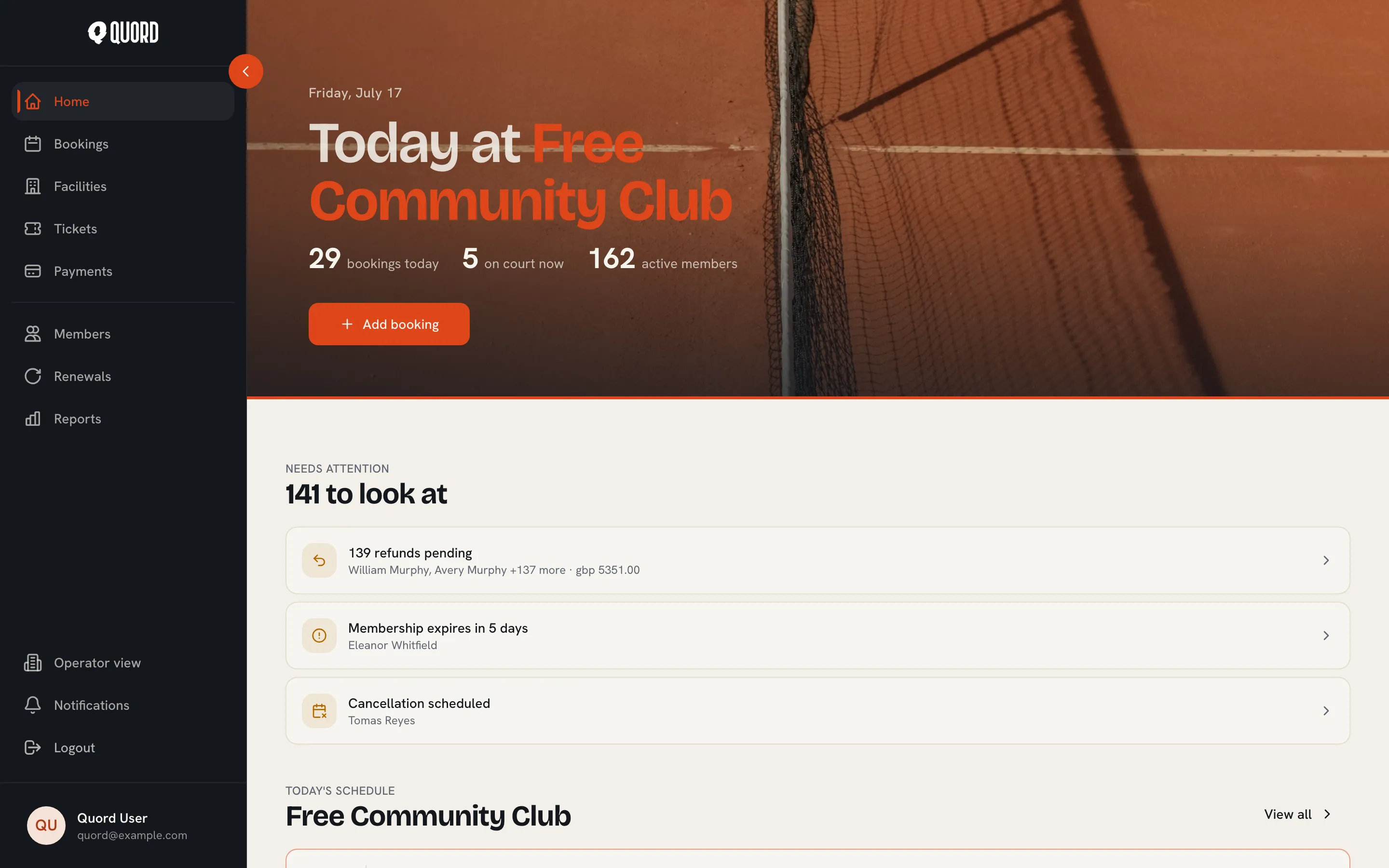
Once the club is live, your Home page becomes an operator dashboard with today’s schedule and a list of items that need attention.