
Members
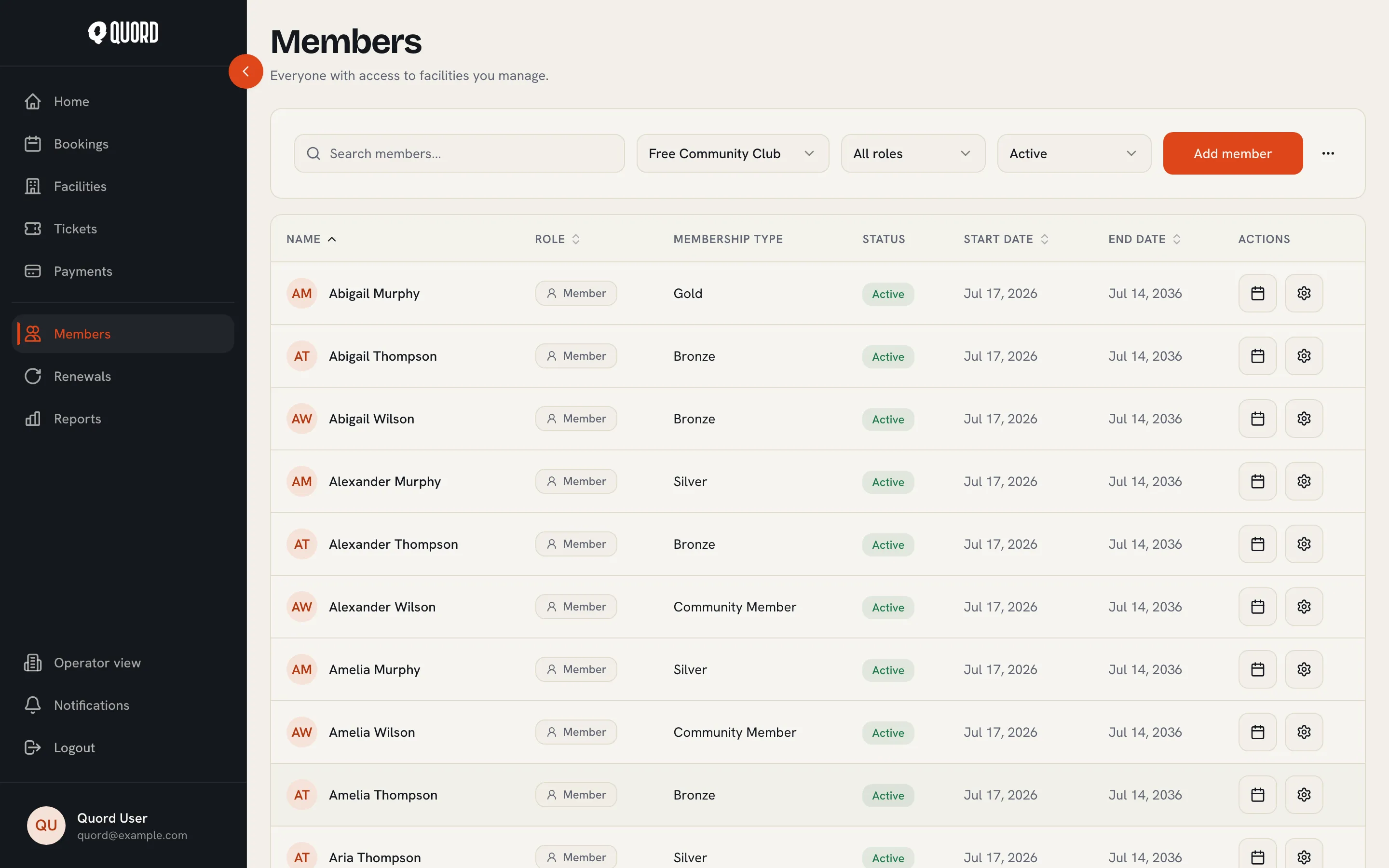
The Members page in the sidebar lists everyone with access to the clubs you manage. Search by name, and filter by club, role and status (Active, Pending, Inactive, Expired, Cancelled). “Export CSV” downloads the roster with your current filters applied.
Invite a member by email
Section titled “Invite a member by email”- Select “Add member”, then the “By email” tab. If the address already belongs to a Quord account, you can invite that user directly instead.
- Enter the recipient’s email, then configure the invitation: membership type, payment option, start date, and whether it auto-renews.
- Select “Send invitation”.
The invitee gets a link by email. They sign up (or log in), review the plan and dates you set, and choose “Accept & pay” if the plan has a price. Invitations expire after 14 days. Pending ones are listed under “Manage enrolment requests” (see Enrolment requests below), where you can “Rescind” them.
Enrolment requests
Section titled “Enrolment requests”“Manage enrolment requests” on your club’s Manage page (Members section) opens one page with two lists. “Pending invitations” holds the email and Quord-user invitations you have sent, each with a “Rescind” button that cancels it before the person responds. “Waitlist requests” holds people who asked to join a club that reviews applicants first (see Join a club). Each request shows the person, their optional note and how long ago they asked, with “Approve” and “Deny”.
“Approve” doesn’t create the membership. It lets the requester in: their club page changes to “Choose plan & pay”, and they pick a plan and pay like any other member. An approval is good for 14 days; after that the requester has to ask again. “Deny” turns them away, with an optional reason that is sent to them. Either way the person is notified.
A “Recent activity” panel at the foot of the page lists invitations and requests answered in the last 30 days, so you can see what was accepted, declined, approved or denied.
Add a member manually
Section titled “Add a member manually”Use the “Add manually” tab when the person is standing in front of you or has already paid. Find them by full email address or Quord tag, then pick the membership type and dates. The payment step has two choices:
- “Free / Comp”: no payment is taken, and the end date is yours to set.
- “Paid offline”: records a cash, card-at-the-club or bank transfer payment alongside the membership.
Running memberships without online payments
Section titled “Running memberships without online payments”A club can run every membership without Stripe. Add members with “Paid offline” (cash, card at the club, bank transfer) or “Free / Comp”. When a term ends, open the member and use “Record offline renewal”; the end date extends by one term. On a family plan one offline renewal extends the whole family, so every covered member moves to the new end date together. Offline memberships never charge a card and never renew on their own; a renewal happens when you record it. Members see a “Manual billing” notice, and card reminders, the consent checkbox, cooling-off refunds and self-service plan changes don’t apply. A “Free / Comp” membership has no price, so there is no renewal payment to record; extend it by editing the end date.
Manage a membership
Section titled “Manage a membership”The gear icon on a roster row opens the member. From there you can change their role, active status and membership dates, and use the actions:
- “Renew Membership” starts a renewal on the member’s plan. For memberships paid offline the button is “Record offline renewal” instead.
- “Update Plan” moves the member to another type or payment option. Members who pay by card through Stripe change their own plan from their membership page, so the button is unavailable for them.
- “Cancel Membership” schedules a cancellation: pick the “Cancellation Date” and the member keeps full access until then. A scheduled cancellation shows an “Undo” button if plans change.
Family plans add a Family section for choosing the covered members, and the Contact and History sections hold the member’s details and past changes.
A covered member keeps their family slot until removed, even while the membership is suspended. Removing someone never changes the price and never affects the rest of the family.
Member and manager roles
Section titled “Member and manager roles”The “Role” toggle on the member’s page has two settings, “Member” and “Manager”. A member just holds a membership: they book, pay and manage their own account. A manager also runs the club, working from the operator view in the sidebar: bookings, members, membership types, payments and settings. Make someone a manager when you want them to help run the club day to day.
One thing stays with the club owner alone: the “Danger zone” on the Manage page, where a club is deleted or re-opened (see Set up your club). A manager can do everything else, but only the owner can close or re-open the club.
Renewals
Section titled “Renewals”The Renewals page in the sidebar shows memberships ending soon. Pick the club and a window (“Next 7 days” up to “Next 90 days”). Three figures sit above the table: “Revenue at risk” (the annual value of renewals that won’t happen on their own, because auto-renew is off or payment is past due), “Auto-renewing” and “Total in window”.
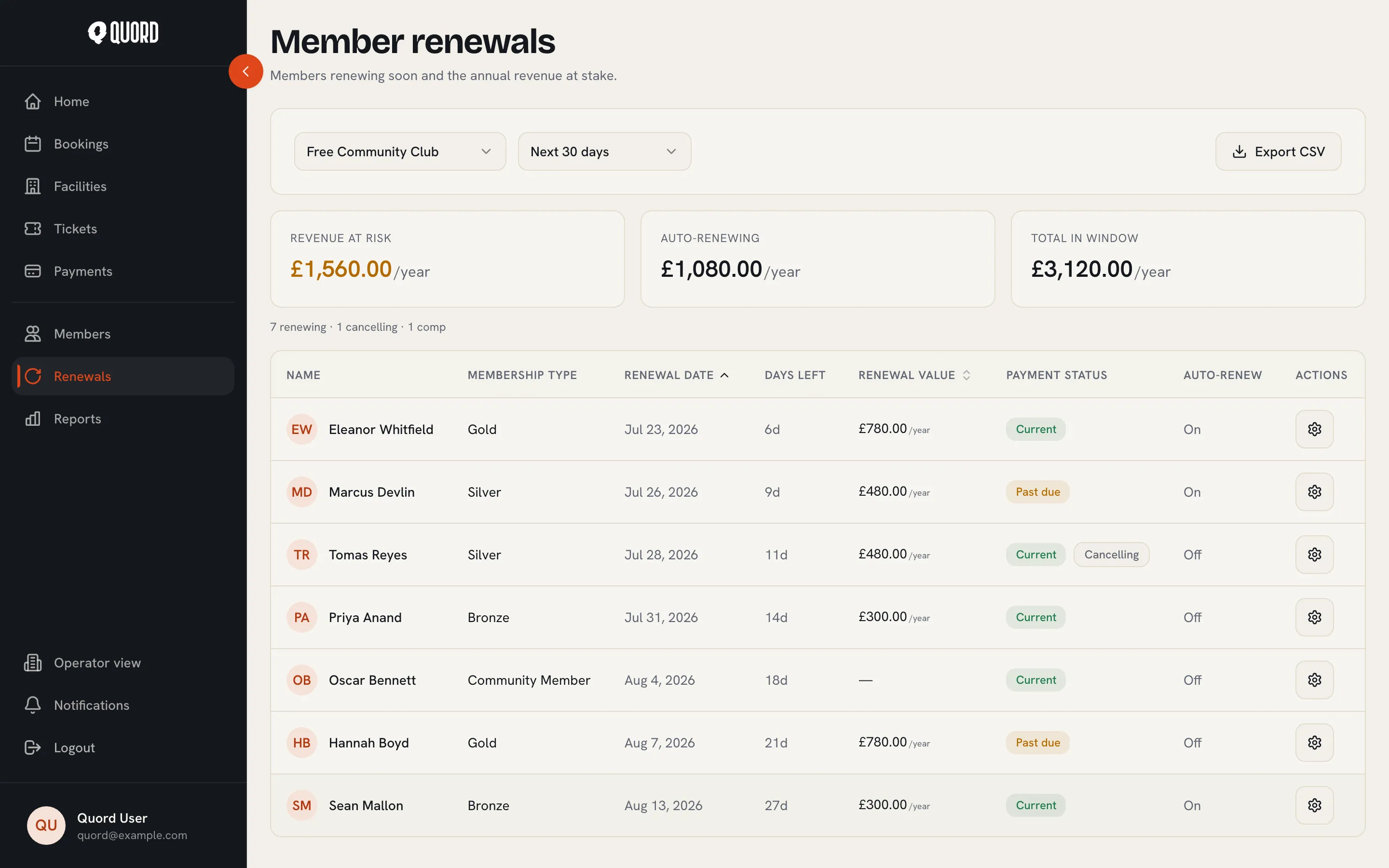
Each row shows the renewal date, days left, renewal value, payment status (“Current”, “Past due” or “Suspended”, plus “Cancelling” when a cancellation is scheduled) and whether auto-renew is on. The gear icon opens the member so you can renew them or look up their contact details, and “Export CSV” downloads the list.
When a renewal card payment fails, the member is emailed at once and keeps access for 14 days while the payment retries. You see “Past due” in the payment status column but receive no email, so this page is the one to watch. After the window the status turns “Suspended”: access stops, no further charges are attempted, and rejoining is the member’s own action.