Your Quord plan
Your club’s subscription lives under Plan in the Manage area, on a page headed Facility Plan. It shows your current plan and lets you move between Standard and Premium.
Choose a plan
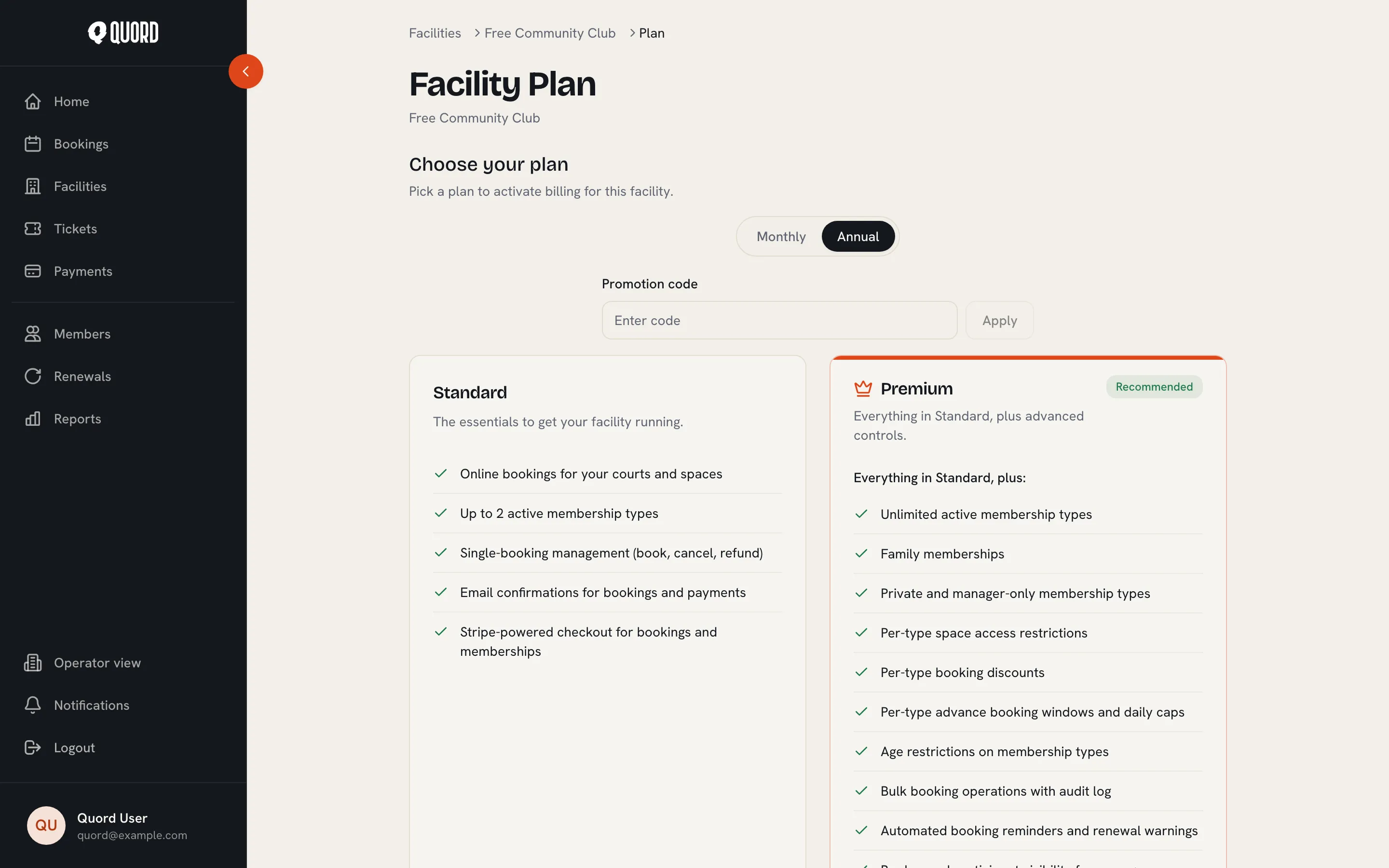
Section titled “Choose a plan”A new club sees Choose your plan: Standard and Premium side by side, with a Monthly/Annual billing toggle and a Promotion code field. Pick a plan to go through Stripe checkout.
Your current plan
Section titled “Your current plan”Once subscribed, the page shows your tier with a status badge (Active, Trialing, Past Due or Cancelled), the Renews On date and your billing interval. Monthly subscribers also get a Switch to annual option.
Upgrade to Premium
Section titled “Upgrade to Premium”Select Upgrade to Premium. The dialog shows exactly what your card will be charged today, including credit for the unused part of your Standard period, before you confirm with Upgrade now. Premium features unlock immediately.
Downgrade to Standard
Section titled “Downgrade to Standard”Select Switch to Standard, then Schedule switch. Premium stays active until the end of your current billing period, and the club moves to Standard automatically after that. Until then, a banner shows the scheduled date with a Cancel switch button to undo it.
The same rollback applies whenever Premium ends for any reason, for example a trial running out or a cancelled plan reaching the end of its period.
Cancel your subscription
Section titled “Cancel your subscription”To stop paying Quord altogether, select Manage Billing and cancel the subscription in the Stripe billing portal. Quord does not cancel plans from inside the app; the portal is where cancellation lives, alongside the card on file and your invoices.
Cancellation takes effect at the end of the current billing period, not straight away. Until then the plan stays active, the page shows a Cancels on date in place of Renews On, and a banner notes the scheduled date. To undo it, reopen Manage Billing and reactivate the subscription before that date; the page returns to Renews On once Stripe confirms.
When the period ends, the plan moves to “Cancelled” and the club is paused: it is removed from the public directory and stops taking new bookings and new members until you subscribe again. Premium-only settings roll back as described above, but your history, exports and member records stay readable. Subscribing again from this page, which returns to the Choose your plan step, lets the club take bookings and members again; to reappear in the public directory, publish it again from the club’s settings.
Promotion codes
Section titled “Promotion codes”Enter a code in the Promotion code field at checkout, or inside the upgrade dialog, and select Apply. A valid code shows its discount before you pay. Codes apply when subscribing or upgrading; they cannot be applied to a downgrade, because a downgrade charges nothing until the current period ends.
Billing and invoices
Section titled “Billing and invoices”Manage Billing opens the Stripe-hosted billing portal, where you update the card on file and download past invoices. Payments are processed by Stripe; Quord never sees your card number.
If a payment fails
Section titled “If a payment fails”The plan status becomes “Past Due” and you have 14 days to put it right. Everything keeps working during that window; the banner shows the date, and Update payment method opens the Stripe portal. If the invoice is still unpaid when the window ends, Premium features switch off until billing is fixed. Paying the outstanding invoice restores them, with nothing else to do.