
Manage your bookings
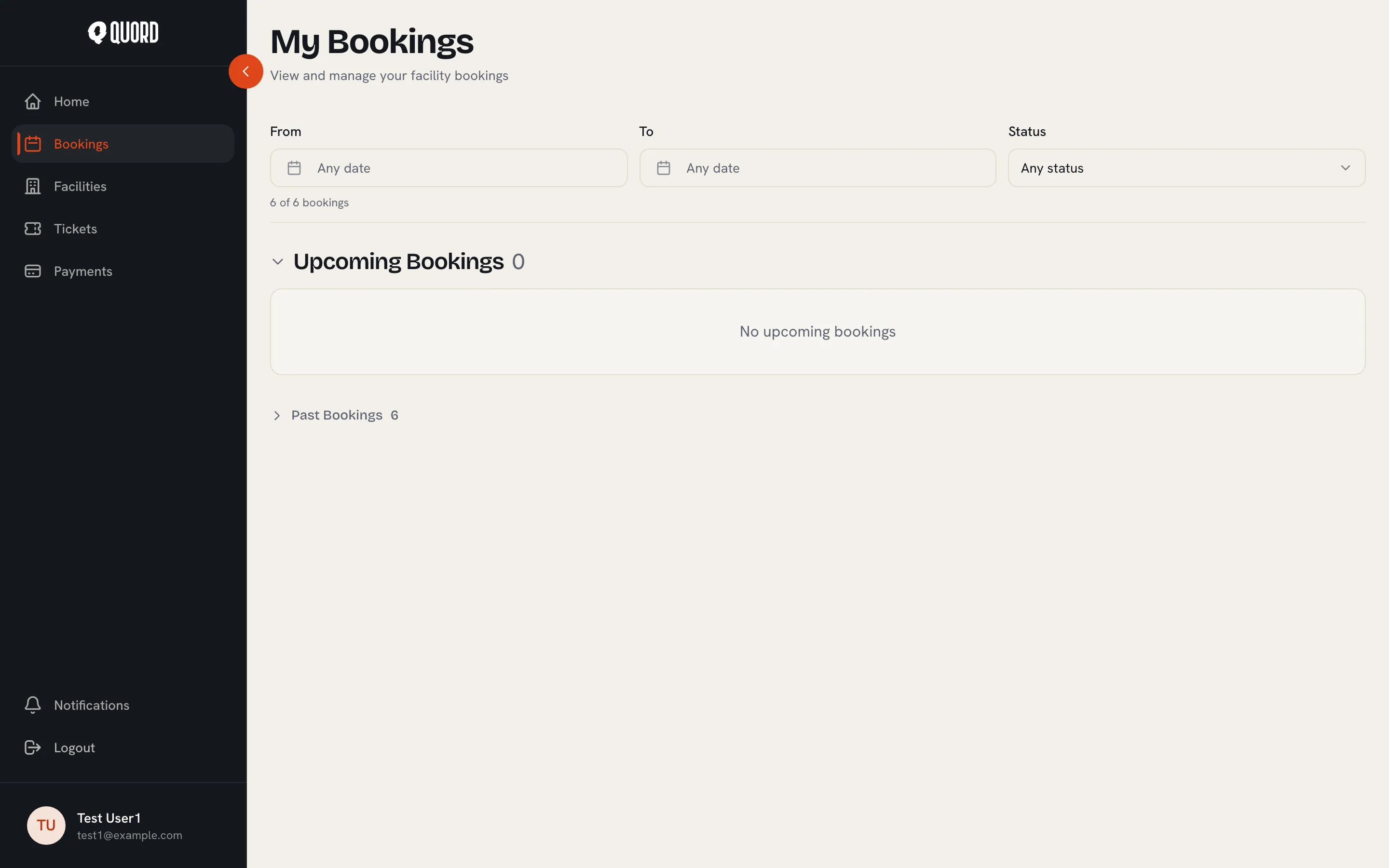
Choose “Bookings” in the sidebar. The page splits into “Upcoming Bookings” and “Past Bookings”, and you can filter by date range or status.
Statuses
Section titled “Statuses”Each booking carries one of these: “Confirmed”, “Pending payment” (checkout not finished yet), “Payment failed”, “Payment expired”, “Cancelled”, “Completed”, or “No show” (recorded by the club when nobody turned up).
“Pending payment” holds the slot for around half an hour while you complete checkout. If you don’t finish, the booking becomes “Payment expired”: nothing is charged and the slot is released. A “No show” comes with a “Missed booking” email; no fee is charged, and the club can restore the booking if it was recorded by mistake.
Booking details
Section titled “Booking details”Click a booking to open “Booking Details”: the court and time, every participant, a payment summary, and an “Actions” card with what you can still do. While a booking is confirmed and the cancellation deadline hasn’t passed, “Edit booking” lets you move it to another free slot at the same price and change who is playing.
Cancel a booking
Section titled “Cancel a booking”From the details page or the list, choose “Cancel booking” and confirm in the “Cancel Booking” dialog.
- If you paid by card and cancel in time, the payment is refunded automatically through Stripe.
- The deadline is set by your club and appears in the booking’s cancellation policy. Once it passes, the button is disabled with “Too late to cancel - cancellation deadline has passed”.
- Payments made at the club (cash or card at the desk) are refunded by the club directly; cancelling notifies them.
Withdraw from a booking
Section titled “Withdraw from a booking”If someone added you to their booking, you can’t cancel it, but you can remove yourself. Open the booking and choose “Withdraw from booking”, then confirm with “Withdraw”. The booking carries on for the remaining players. This is available on confirmed bookings until the start time.