
Book a court
Open your club’s page and choose “Book Now”. Everything happens on one page, headed “Create Booking”.
Pick a slot
Section titled “Pick a slot”-
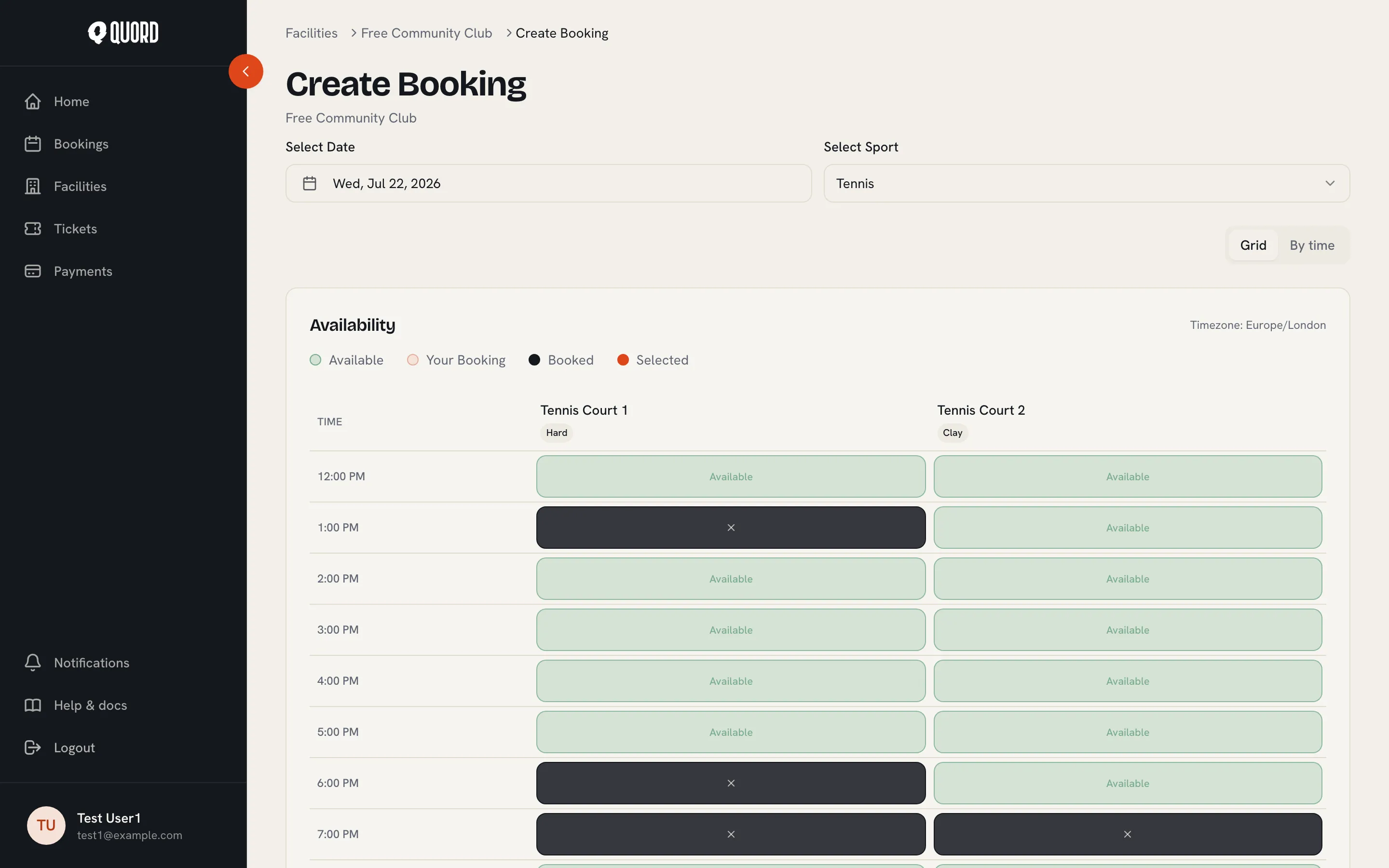
Set “Select Date” and “Select Sport”. If your club offers more than one booking length for that sport, “Duration” chips appear. Pick how long you want to play.
-
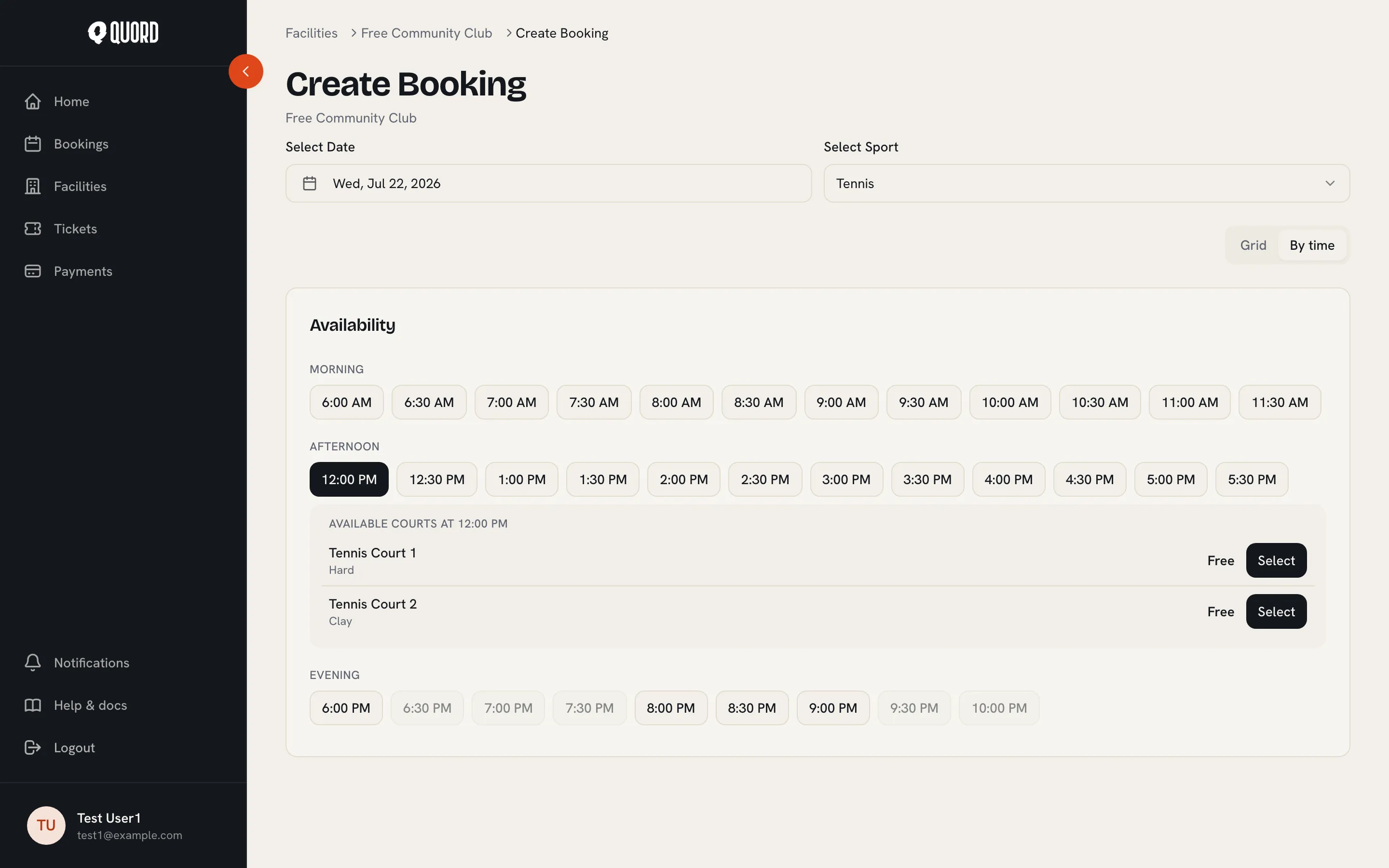
Choose a slot in either of the two views, switchable with the “Grid” / “By time” toggle:
- “Grid”. One column per court, one row per time. Read it with its legend: “Available”, “Your Booking”, “Booked”, “Selected”. All times are in the club’s timezone, shown at the top right of the grid.
- “By time”. One button per start time; times with no free court show as “Fully booked”. Tap a time to see the courts free at that moment, with their price for your chosen duration, and “Select” one.
-
The Grid is the default on a computer and shows the club’s standard slot length; phones start on “By time”. Longer durations, and start times between the grid’s rows (say 18:30 to 19:30), are always booked through “By time”.
Add players
Section titled “Add players”For sports that need more than one player, a “Select Participants” dialog opens. You are included automatically, so you only add the others.
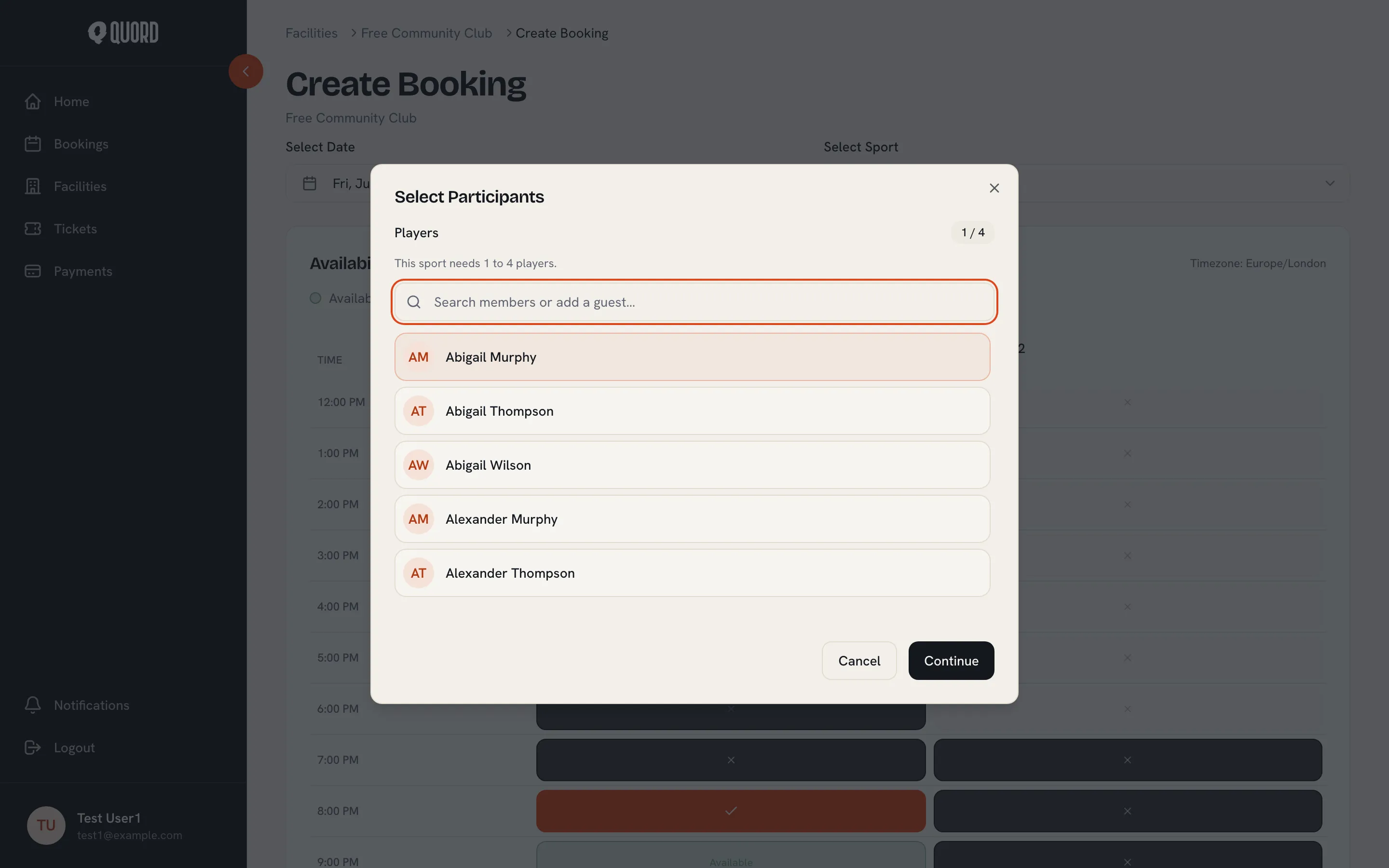
The dialog states how many players the sport needs. Use the “Search members or add a guest…” box to pick club members. To bring someone who isn’t a member, type their name and choose the “as a guest” option (clubs decide whether external guests are allowed). A guest counts towards the player total the same as a member. “Continue” unlocks once the player count is right.
Review and confirm
Section titled “Review and confirm”The “Review Booking” dialog shows the club, court, date, time, participants and total price, along with the club’s “Cancellation Policy”.
On a family plan, a “Booking for” selector lets you book on behalf of a dependant: choose “Myself” or the child’s name. Only dependants who hold a membership at this club appear.
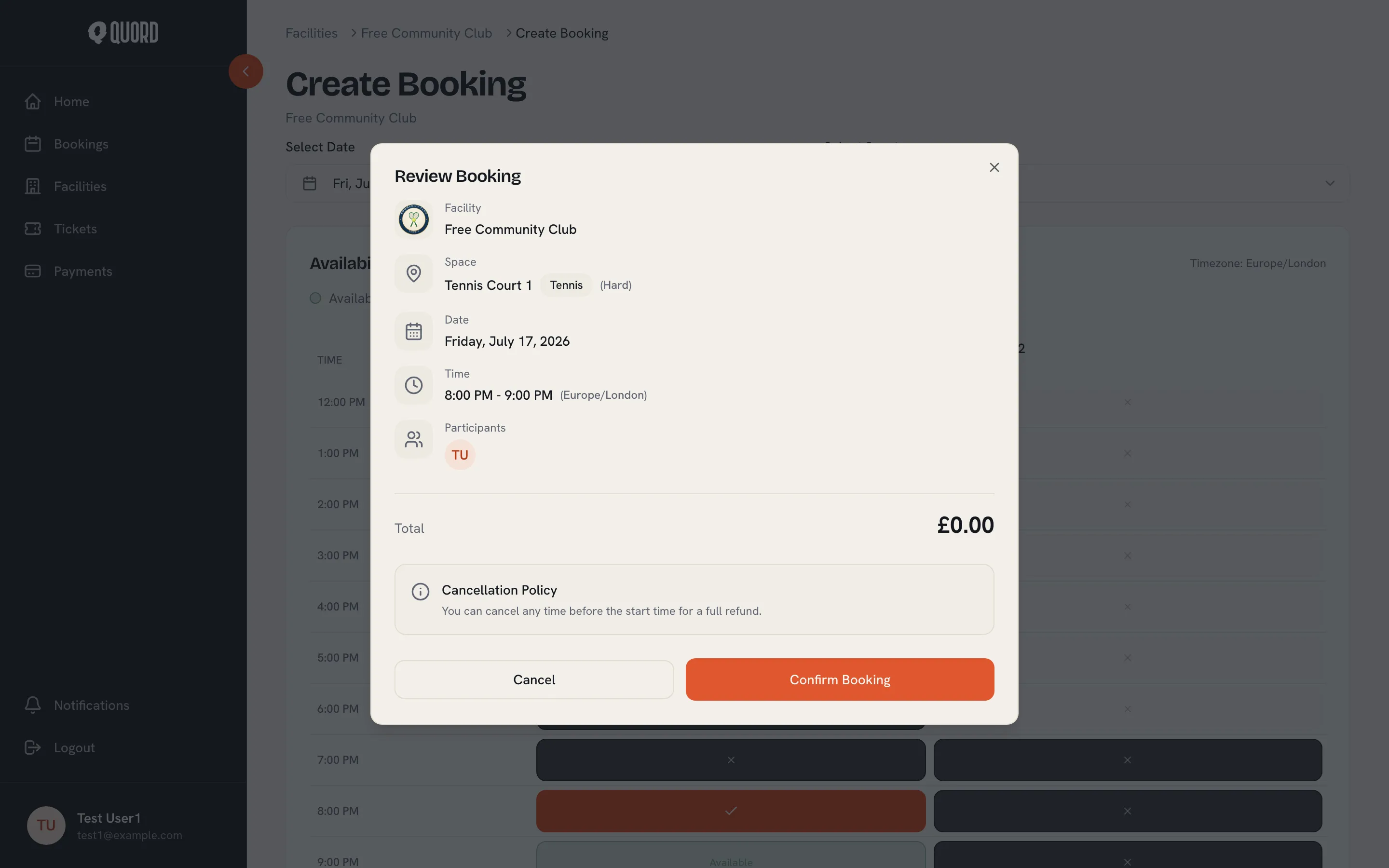
- A free slot confirms straight away with “Confirm Booking”.
- A paid slot goes through “Proceed to checkout” to a Stripe payment page. The booking is confirmed once payment completes. Payments are processed by Stripe; Quord never sees your card number. Prices include VAT where it applies.
If someone else takes the slot first, you’ll see “Slot unavailable”. Pick a different one. Should they complete payment for the same slot a moment before you, your booking does not stand: the card payment is refunded automatically and the booking shows as “Cancelled”.
Booking rules
Section titled “Booking rules”Your club sets the rules: slot length, how far ahead you can book, how many bookings you can make per day, and the cancellation deadline. Dates beyond the club’s advance booking window can’t be selected in the date picker. The daily limit counts every game you are in, whether you booked it or someone added you as a player. On a family plan, each person has their own daily allowance.