
Membership types
Membership types are the plans people can join at your club. Each type has its own prices, billing schedule and rules. To manage them, open your club’s Manage page, go to “Members” and select “Manage Membership Types”.
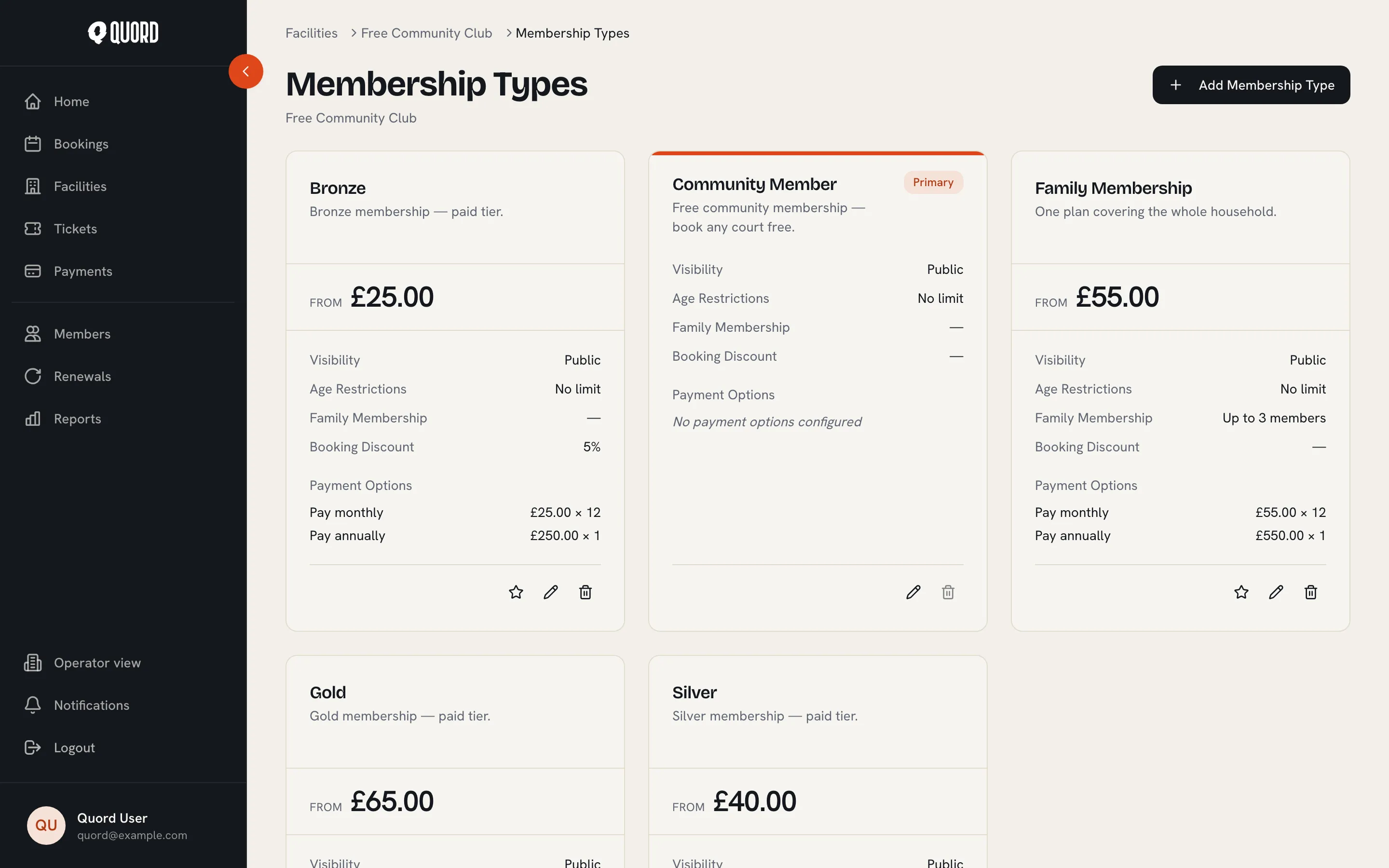
Create a type
Section titled “Create a type”- Select “Add Membership Type”.
- On the Basics tab, enter a name and an optional description. “Tier rank” orders your plans: members can only switch to a higher-ranked type.
- On the Pricing tab, set the currency, then use “Add payment option” to add at least one way to pay. Each option has a name, a frequency (“Monthly”, “Quarterly” or “Annual”), a price, and how many payments it takes. An annual plan paid upfront is 1 payment of £300; the same plan paid monthly is 12 payments of £25. Members choose one option when they join.
- Select “Create”. The type appears as a card on the page.
On Standard, up to 2 membership types can be active at once. Create as many as you like, but activating a third means deactivating another or upgrading to Premium. See Your Quord plan.
Visibility and the Primary type
Section titled “Visibility and the Primary type”Types are “Public” by default. On Premium you can also choose “Private” (visible to active members only) or “Manager Only” (hidden from members, handy for staff or legacy plans). Plans created by a data import start as “Manager Only” so pricing can be checked before members see them.
One active type carries the “Primary” badge, and joiners see it with a “Recommended” badge on the join page. Use the star icon (“Set as Primary”) to move it. A Primary type cannot be deactivated or deleted until another type takes over.
Who can join online
Section titled “Who can join online”Self-enrolment is a club-wide setting, in Manage under “Members”. The “Member enrolment policy” has three options:
- “Open”: anyone can self-enrol and pay through your club page.
- “Waitlist”: outsiders request to join, and managers approve before they can pay.
- “Closed”: only managers can add members, and the club page hides the join button.
Premium rules per type
Section titled “Premium rules per type”Premium unlocks two more tabs in the type form:
- Eligibility: “Minimum Age” and “Maximum Age” limit who can hold the type. Tick “Family Membership” to cover several people under one plan and set “Maximum Family Members”. An age range on a family type applies to everyone on the plan, payer included, so a plan meant for mixed ages should have no age range. You pick the covered members when adding or managing the member (see Members).
- Booking: “Advance Booking Days” and “Max Bookings/Day” override your club’s booking rules for this type, and “Booking Discount %” cuts court prices for its members. “Space access” limits the type to chosen courts; leave every court unchecked to allow all of them.
Free and comp memberships
Section titled “Free and comp memberships”There is no free tier setting on the type itself. To grant free access, add the member manually from the Members page and choose “Free / Comp” in the payment step: no payment is taken and the member gets access for the dates you set. See Members.
Delete a type
Section titled “Delete a type”The bin icon on a card asks for confirmation. If the type still has active members, choose “Deactivate all members” or “Migrate to another membership type” and pick where they go.