
Import data
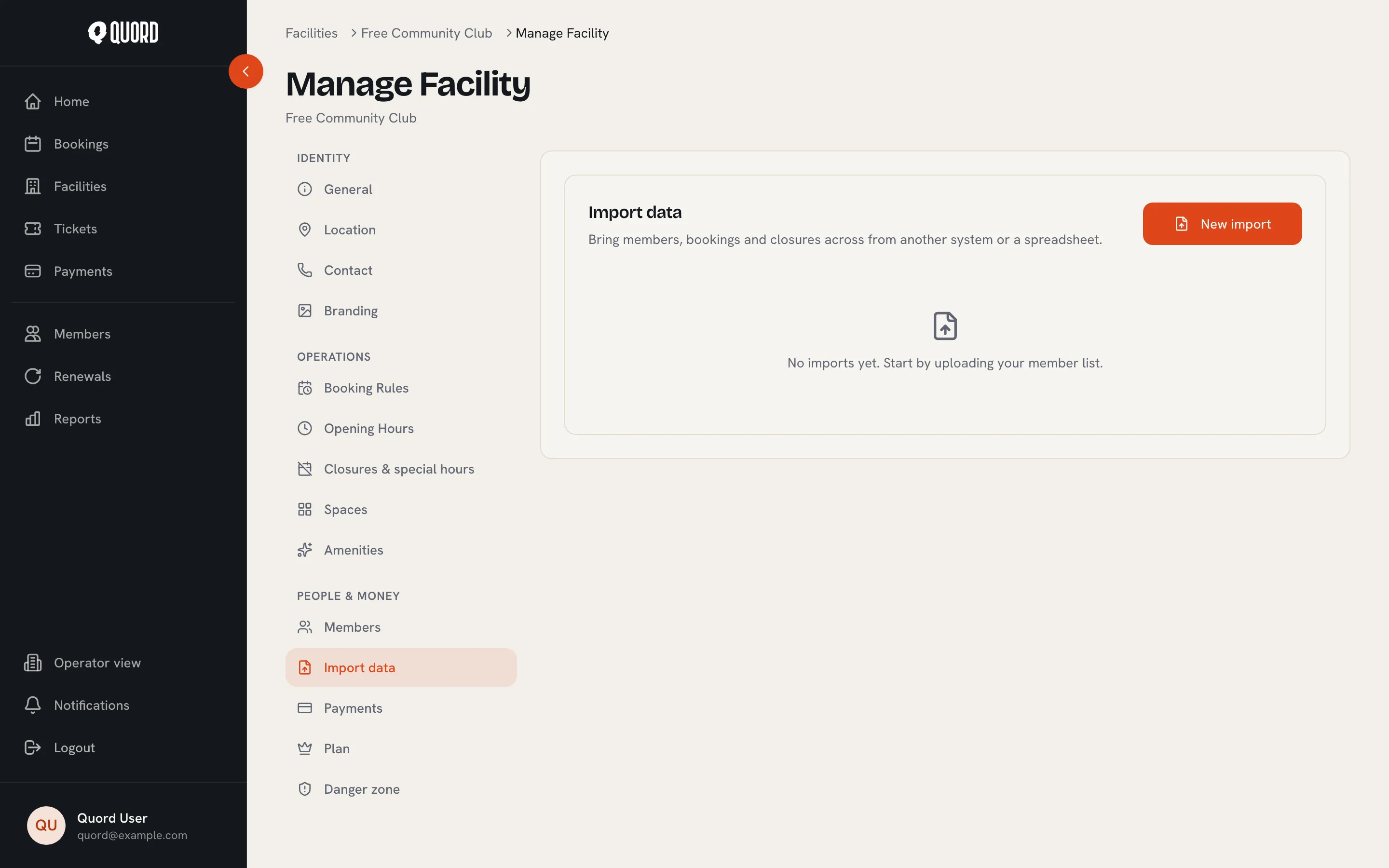
Moving from another system? The import wizard brings your members, bookings and closures across from a CSV or Excel export. Nothing is written to your club until the final confirmation step, and a finished import can be undone.
Find it under Import data in your club’s Manage area.
Run an import
Section titled “Run an import”-
Select New import and choose what you are importing: members, bookings or closures.
-
Upload: drop in a CSV or Excel (.xlsx) file, up to 10 MB or 20,000 rows. Exports from ClubSpark, Playtomic, AceBook and CourtReserve are recognised, but any spreadsheet works.
-
Match columns: pair each Quord field with a column in your file. Recognised columns are pre-filled; anything marked “Check” deserves a look. A members file needs at least a name, an email, a membership plan, a start date and a renewal date. A bookings file needs an email, a court, a date, a start time and an end time, and the court name must match an existing space at your club. Import members before bookings: a booking row whose email doesn’t belong to a member yet fails, and the report tells you to run the members file first. A closures file needs only a start date; an end date (for a multi-day closure) and a reason are optional. Change a column later and Quord checks the file again, so the review always reflects your current choices.
-
Membership plans (members imports only): match the plan names in your file to your membership types. Plans the import creates start hidden from members so you can review their pricing first.
-
Review: see how many rows are ready, plus every warning and error with the row it belongs to. Errors block the import unless you tick the checkbox to skip those rows; everything else imports, and skipped rows can be fixed and re-imported later.
-
Confirm with the import button (for example Import 250 members). Only now is anything written.
After the import
Section titled “After the import”The final screen summarises what was created. Two things stay available from the Import data section afterwards:
- Download report, a CSV listing the outcome of every row, including failures.
- Undo import, which removes what the import created but never takes back anything already in use: accounts members have claimed, memberships that have taken a payment or switched to online billing, and memberships whose dates were changed since the import. Plans the import created are removed only if nobody is left on them. The summary shows how many rows were reverted and how many were kept.
Switch imported members to online billing
Section titled “Switch imported members to online billing”Imported members keep paying the club directly until they are invited to pay online. When you are ready, run the switch from Manage.
-
Open Payments in Manage. The Online billing switch card shows how many members can be invited.
-
Choose Invite members, optionally add a Message from the club, and send.
-
Each member receives an email with a secure link. Saving a card charges nothing: the first online payment lands on their existing renewal date.
-
Members who have never signed in choose a password first, which activates their account. They then tick the recurring-payments authorisation and choose Save card with Stripe.
Completing the switch changes nothing about the membership itself: same plan, same price, same renewal date. From the next renewal, payment is automatic. The card in Manage tracks progress from “Invited” through to “Switched”.
Stripe payouts must be set up first, and the campaign only reaches members who pay the club directly on a priced recurring plan. Managers, family-covered members, free memberships and one-off plans are left out, as is anyone whose renewal is only a day or two away.
A campaign can be paused, resumed or cancelled. Cancelling stops unclaimed links but never affects members already paying online.