
Find a club
Browse the directory
Section titled “Browse the directory”The public directory, headed “Find a place to play”, lists every published club. Type in the search box to filter by club name or city. Each card shows the club’s name, location and sports.
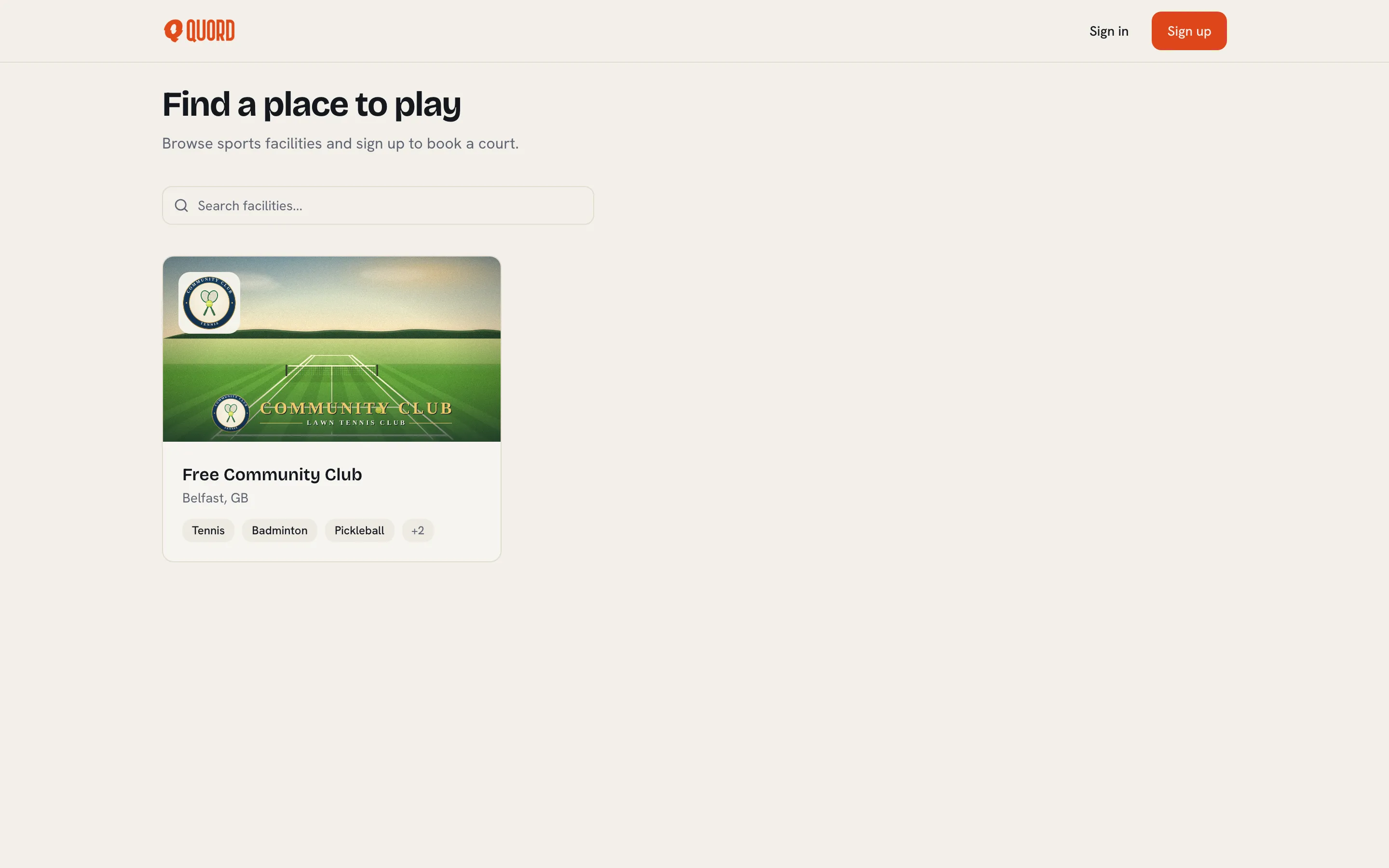
Select a card to open the club’s page. Once you’re signed in, the same clubs appear under “Facilities” in the sidebar, with extra filters (sport, an “Open now” toggle, and a map view).
What a club page shows
Section titled “What a club page shows”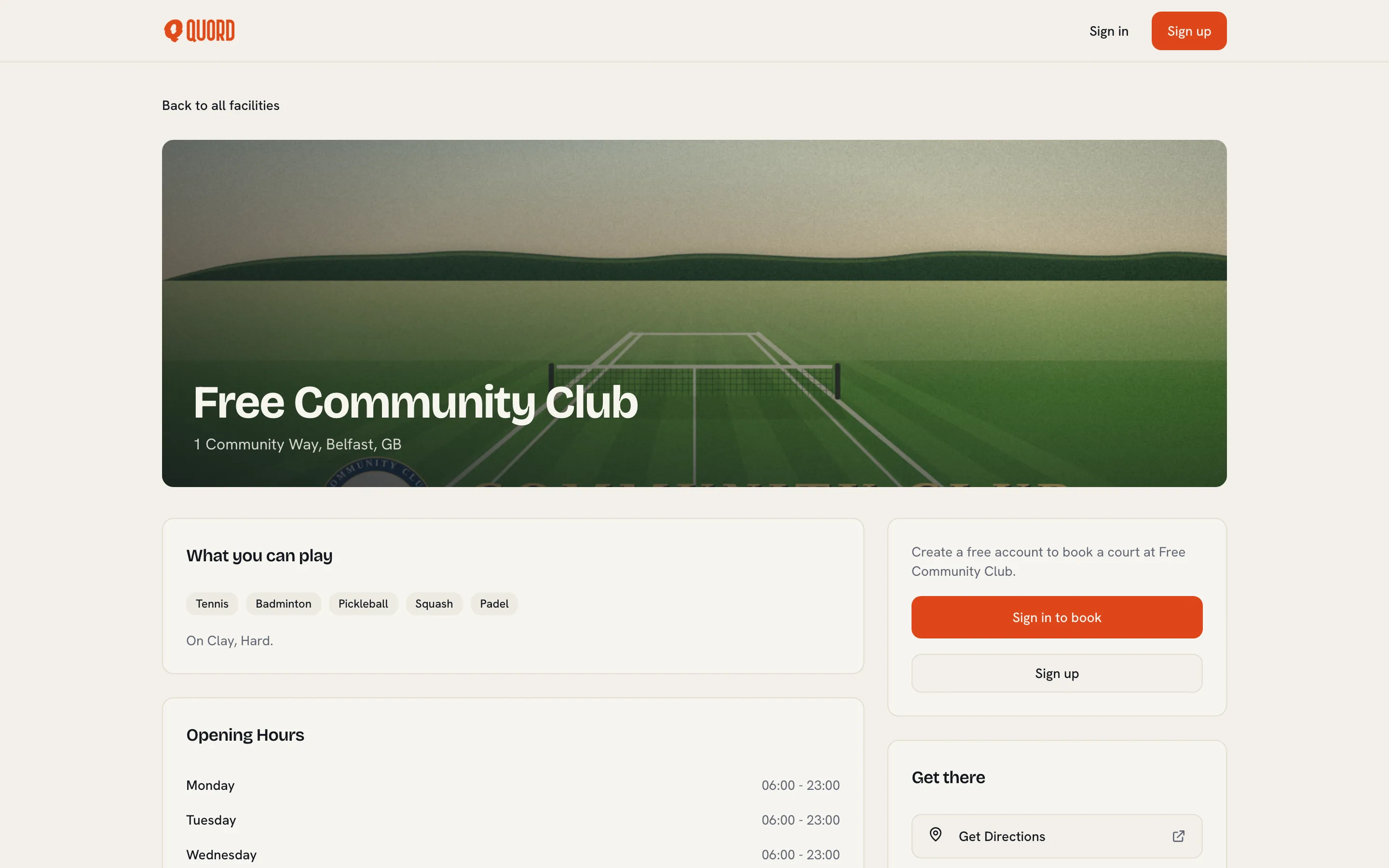
- The cover photo, with the club’s name and full address.
- “About”: the club’s own description.
- “What you can play”: sports on offer and the court surfaces.
- “Amenities”: parking, showers, café and so on.
- “Opening Hours”: the weekly schedule, day by day.
- “Get there”: “Get Directions” opens the address in Google Maps; clubs may also list “Visit Website” and “Call Facility”.
When you’re signed in, a “How to book” card appears too. It shows the “Member Booking” advance window (for example “Up to 14 days in advance”; your club sets this) and either a “Guest Booking” window or “Members Only” when only members can book.
What you can do from here
Section titled “What you can do from here”It depends on who you are:
- Not signed in. Choose “Sign in to book”, or “Sign up” to create a free account.
- Signed in, not a member. The join option depends on the club’s enrolment policy, see Join a club. “Membership Types” lists the club’s plans and prices. If the club allows guest booking, you can book a court without joining.
- Member. “Book Now” starts a booking, “Manage Membership” opens your membership page, and a “Feed” tab shows club announcements alongside “About”.
Join a clubSelf-enrolment, invitations and waitlists.
Book a courtPick a date, sport and time slot.